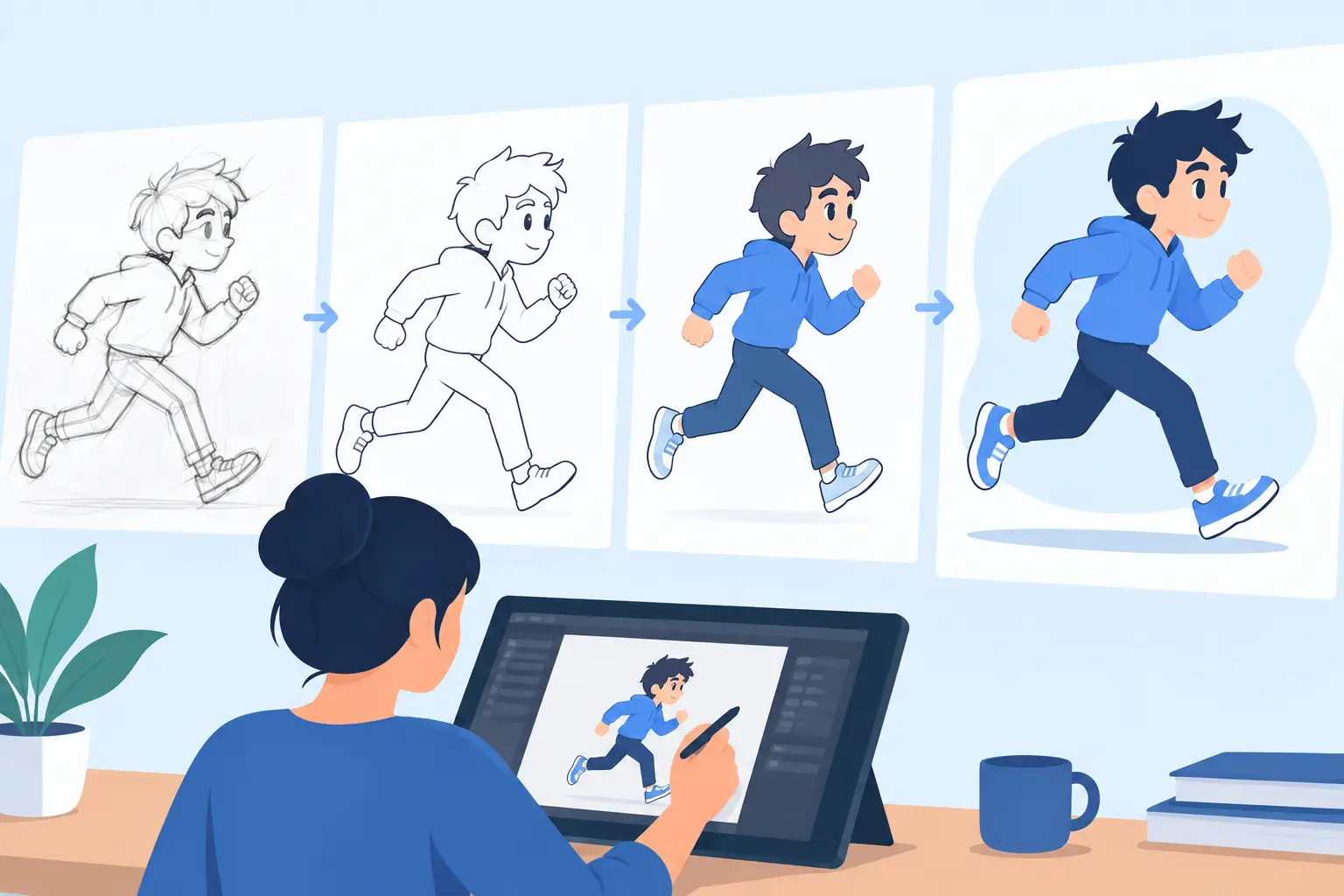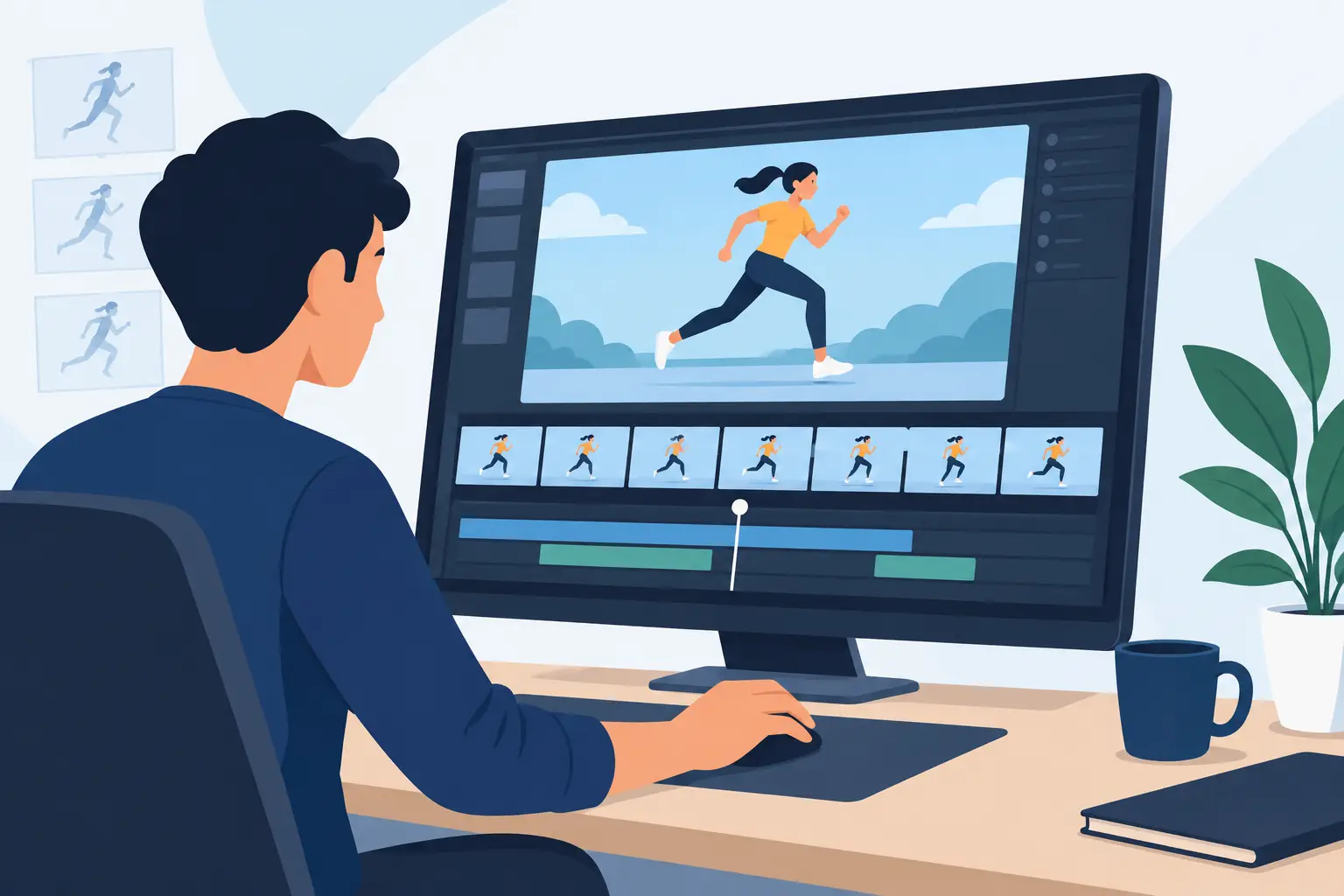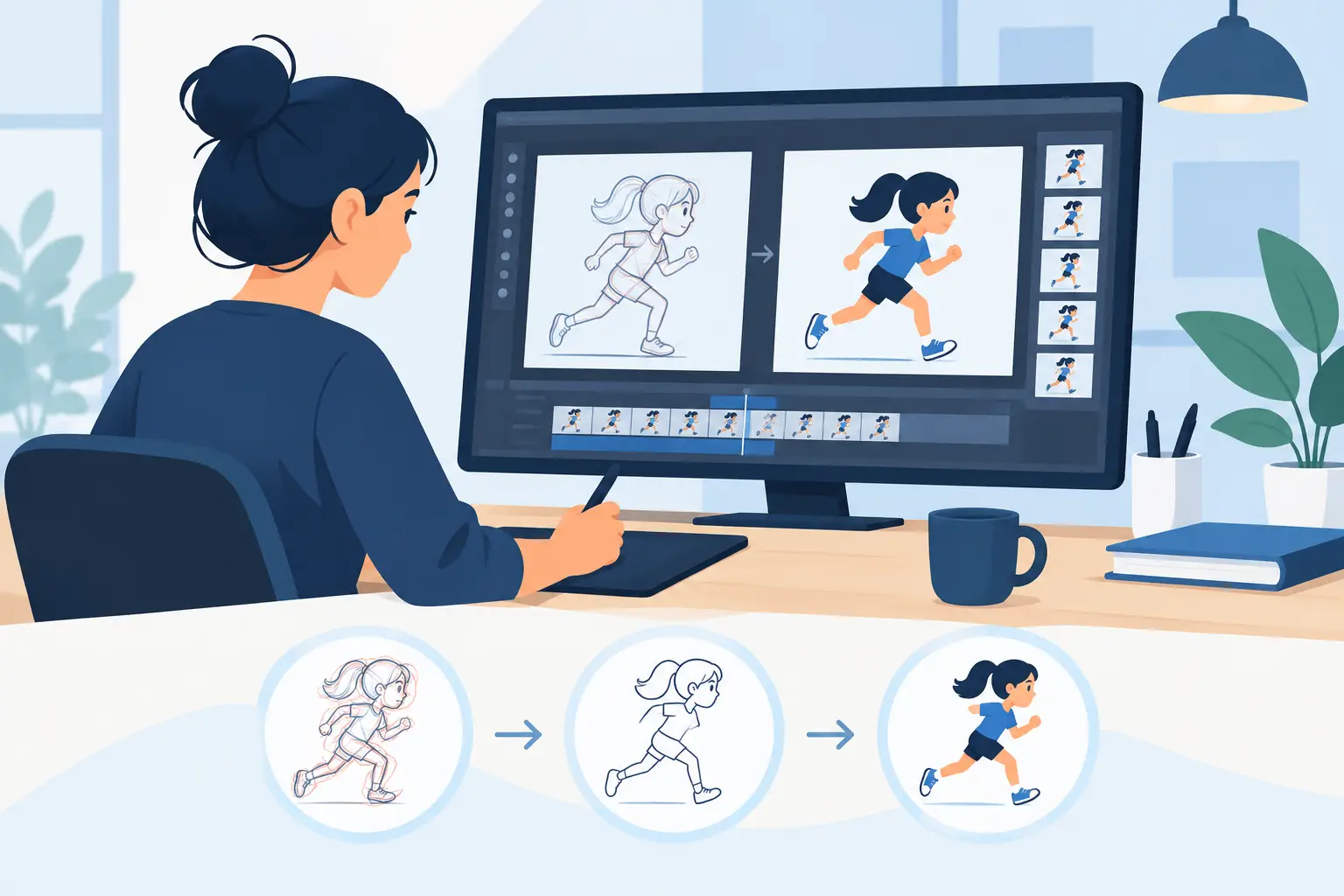
A shot can be beautifully drawn and still feel wrong. Usually, the problem is not draftsmanship. It is timing.
That is why the best tools for animation timing are not just nice extras. They are the difference between a scene that drifts and a scene that lands. Whether you are working on rough keys, cleanup, student exercises, or finished production shots, timing tools shape weight, clarity, comedy, impact, and emotion frame by frame.
For traditional animators, timing also has to stay close to the work itself. If you have to stop playback, open another panel, type values, preview again, and repeat, the rhythm of animation breaks down fast. Good timing tools let you see, feel, and adjust motion while you are still thinking like an animator, not like a technician.
What makes the best tools for animation timing?
The right tool depends on how you animate, but a few standards hold up in any serious 2D workflow. First, you need immediate visual feedback. Timing decisions are rarely made from numbers alone. You need to play a shot, scrub it, test holds, extend drawings, and tighten action without fighting the software.
Second, the tool should respect frame-by-frame thinking. Traditional animation is built on exposure choices, spacing, accents, and controlled repetition. A timing feature that feels designed for motion graphics or automated interpolation may look advanced on paper, but it can slow down a hand-drawn production.
Third, speed matters. Not theoretical speed. Production speed. If changing an exposure takes too many clicks, if painting slows down because timing changes force extra cleanup, or if previewing becomes a constant interruption, the software is costing you time where it should be saving it.
Frame exposure controls
At the foundation of every timing pass is exposure control. This is the simple but essential ability to decide how long each drawing stays on screen. It sounds basic because it is basic, and basic does not mean unimportant.
When you can quickly hold a pose for two frames, four frames, or longer, you gain control over phrasing. A hold before a take gives the audience time to read intent. A short settle after impact gives weight. A delayed blink can make a character feel thoughtful instead of mechanical. Exposure tools are where those choices begin.
The better systems make these adjustments quick and visible. You should be able to see where holds are happening and revise them without digging through menus. If exposure editing is clumsy, animators start accepting bad timing simply because fixing it takes too long.
Timeline and X-sheet style views
A good timeline is useful. A good X-sheet view is often better for animators who think in beats, dialogue, and frame counts.
This is one of the places where software philosophy matters. Some programs present timing as a generic timeline problem. That can work for editing, but animation timing is more specific. You are not just arranging clips. You are deciding when a drawing enters, how long it holds, where the overlap begins, and how accents line up with sound or action.
An X-sheet style workflow helps because it reflects the way many animators were trained to think. It makes frame relationships easier to judge. It also gives students a clearer understanding of timing principles, because they can see the structure of a shot instead of just a moving playhead.
If you teach animation, this matters even more. Students learn timing faster when the tool reinforces production logic instead of hiding it behind abstract interface design.
Real-time playback and scrubbing
One of the best tools for animation timing is not a panel at all. It is responsive playback.
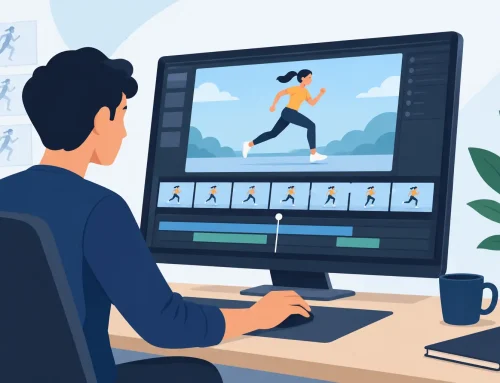
You need to run a scene repeatedly, scrub back and forth, and feel where the action drags or snaps too early. Slow or inconsistent playback turns timing into guesswork. So does a preview system that forces constant rendering before you can judge a change.
Real-time scrubbing is especially useful during rough animation. You can test arcs, anticipations, and follow-through before a shot is polished. That keeps bad timing from hardening into finished work. It also saves money and effort, because timing problems are cheapest to fix when the scene is still rough.
For professionals, this is a production issue. For beginners, it is a learning issue. In both cases, immediate playback shortens the distance between intent and result.
Onion skinning and frame comparison
Timing is inseparable from spacing. If your timing tools do not help you judge spacing, they are only doing half the job.
Onion skinning and frame comparison features let you see how far the drawing is traveling, where the spacing opens up, and where it bunches. That is how you tell whether a fast move feels crisp or floaty, whether a slow ease has enough control, or whether a hold is truly holding.
This matters because timing notes often show up as spacing problems first. A character may seem late on a reaction, but the real issue is that the spacing into the pose is too even. A punch may feel weak, but the real issue is that the anticipation telegraphs too long. When you can compare frames directly, you diagnose the shot faster.
The best systems keep this visual information close at hand rather than burying it under effects tools or compositing features you may not need for straight-ahead animation work.
Audio sync and frame-accurate cueing
If you animate dialogue, music, or action tied to sound, frame-accurate audio support is not optional. Lip sync, accents, and comedic timing all depend on it.
A useful timing tool should let you identify exact frames for phonemes, impacts, pauses, and transitions in performance. It should also make it easy to preview those relationships repeatedly. The software does not need to overcomplicate this. In fact, simpler is often better, as long as the sync is dependable.
For dialogue scenes, timing choices are rarely isolated. A held eye blink, a delayed head turn, or a faster mouth close can completely change the read. That is why audio timing needs to be accessible during animation, not treated as a separate post step.
Camera timing and shot motion controls
Not every timing decision belongs to character animation. Camera moves, pans, zooms, and dissolves also affect rhythm.
If a digital camera move starts too early, it can step on the action. If a zoom takes too long, it can flatten the energy of a scene. Timing tools that let you control these elements inside the same workflow are especially helpful for independent filmmakers and small studios, where one artist may be handling both character motion and shot presentation.
This is another place where trade-offs matter. Some software offers plenty of camera options but makes frame-by-frame timing harder. Others keep the drawing workflow clean while still giving you enough camera control to finish the shot efficiently. For a traditional 2D production, that balance usually matters more than having every possible cinematic effect.
Real-time retiming during playback
This is where the gap between average software and purpose-built animation software gets very clear.
In many applications, timing changes follow a stop-adjust-preview cycle. You play the scene, notice a problem, stop, make the edit, play again, and repeat. That may sound manageable, but across dozens of shots it becomes a serious drag on production.
A better approach is real-time retiming during playback. When you can adjust timing as the scene runs and judge the result immediately, you stay connected to the motion. The shot remains alive while you work on it. That is much closer to the way animators actually evaluate timing.
This is one reason many traditional animators prefer software built specifically for drawn animation rather than broader all-purpose packages. In a production environment, timing control is not just about having features. It is about having the right features in the right moment.
FlipBook stands out here because it lets animators adjust timing during playback instead of forcing that stop-and-start process. For artists who are shaping performance frame by frame, that is not a small convenience. It is a faster, more natural way to work.
Choosing the right timing tool for your workflow
If you are a student, start with tools that make exposures, playback, and frame relationships easy to understand. You will learn more from clear feedback than from a crowded feature set.
If you are a professional or running a small studio, focus on speed under pressure. Ask how quickly you can revise a scene after a director note. Ask how easily you can test alternates. Ask whether the software supports traditional timing decisions without forcing you through extra technical steps.
And if you are teaching, look for tools that show timing plainly. Students benefit from software that reinforces solid animation practice instead of distracting them with flashy complexity.
The best timing tools are the ones that let you make stronger decisions with less friction. When the software respects the craft, the work gets better. Try the tools that keep you close to the drawing, close to the frame, and close to the performance. That is where timing starts to click.