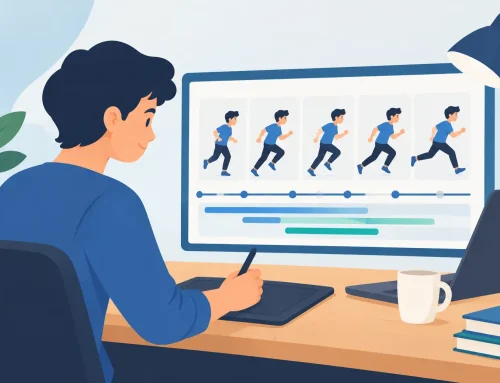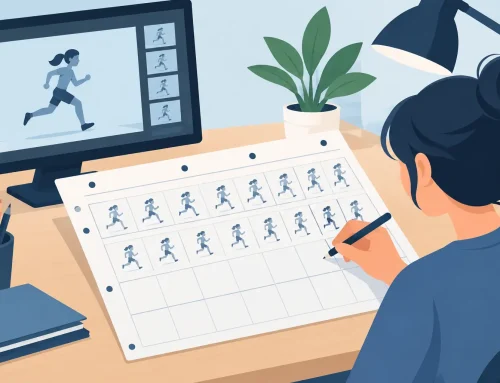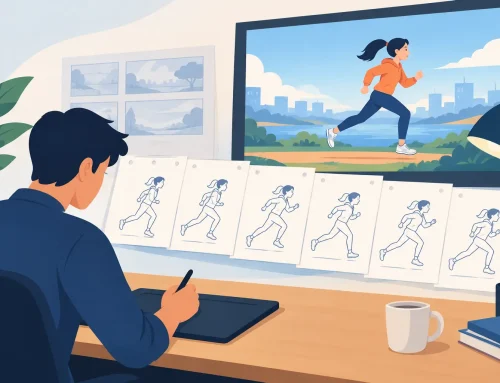
A rough bouncing ball can tell you more about animation software than a long feature list. Draw the arcs, add the squash, hold the contact frame a little longer, then watch it play. If the drawing feels stiff, painting takes too many clicks, or changing timing forces you to stop and rebuild the scene, the software is working against the animator.
Good animation software should help drawings come alive without replacing the discipline behind them. For hand-drawn animators, the essential question is not whether an application has the most tools. It is whether it supports the real work of rough animation, clean-up, color, timing, and camera moves at production speed.
What Hand-Drawn Animators Need From Animation Software
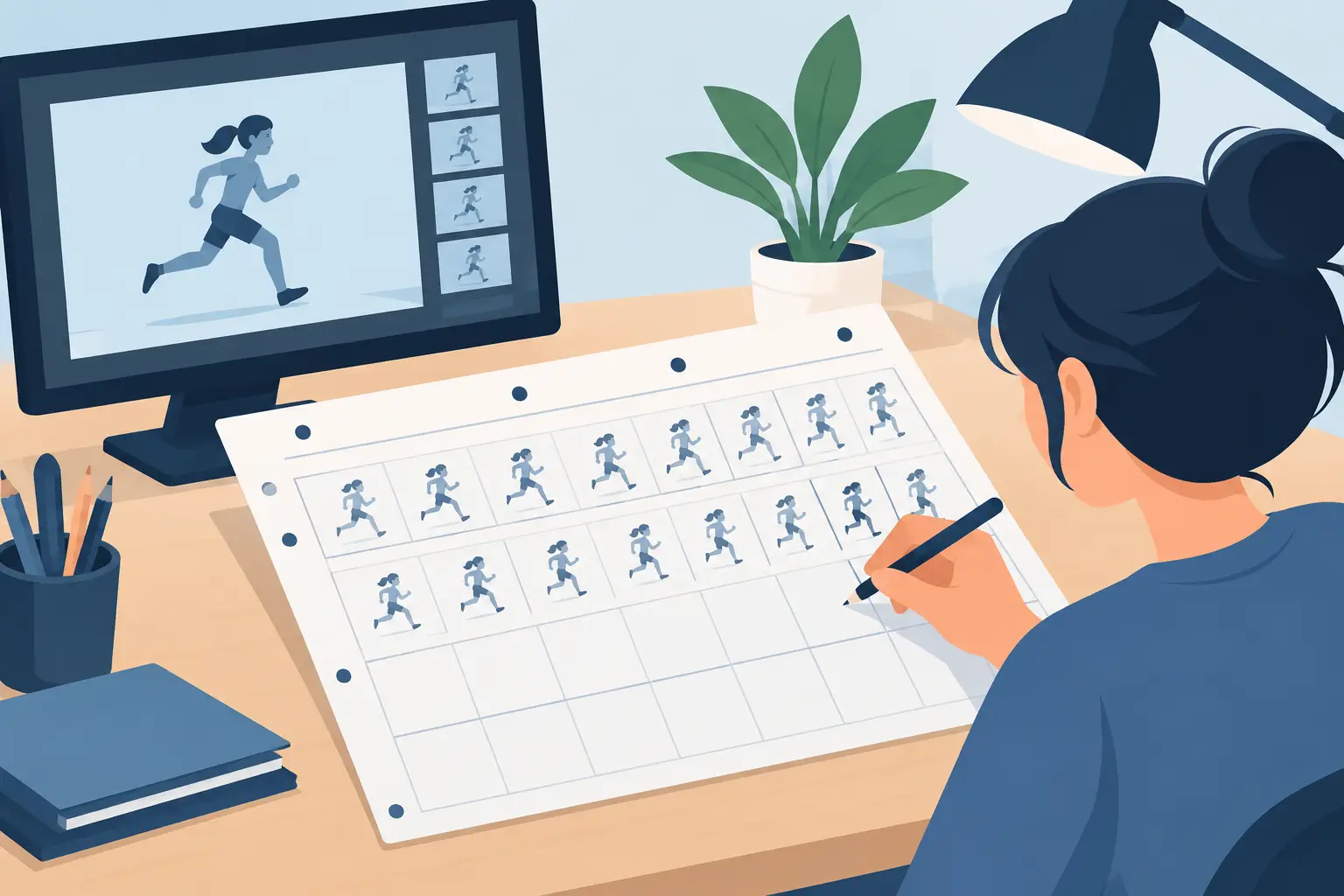
Traditional animation is built frame by frame. An animator needs to see the previous drawing, judge spacing, test an action, and make a correction before the idea goes cold. That process sounds simple, but many digital applications bury it under panels, modes, and extra setup meant for other kinds of production.
A useful 2D program keeps the drawing process close to the surface. You should be able to sketch roughs with a responsive pencil or brush, use onion skinning to follow the action, and move from pose to pose without treating every drawing like a separate design project. The controls should serve the scene, not become a second craft to learn.
This does not mean every animator needs the same toolset. A studio making cutout television animation has different needs from a student learning walk cycles or an independent filmmaker producing a fully drawn short. But when the work depends on expressive line, controlled spacing, and deliberate timing, a traditional frame-by-frame workflow matters more than an impressive catalog of effects.
Drawing Must Feel Direct
The first test is simple: can you draw naturally? A program may offer sophisticated brushes, vector controls, or procedural motion, yet still feel awkward for rough animation. Traditional animators generally need clean line response, dependable tablet input, and an uncluttered way to flip through drawings.
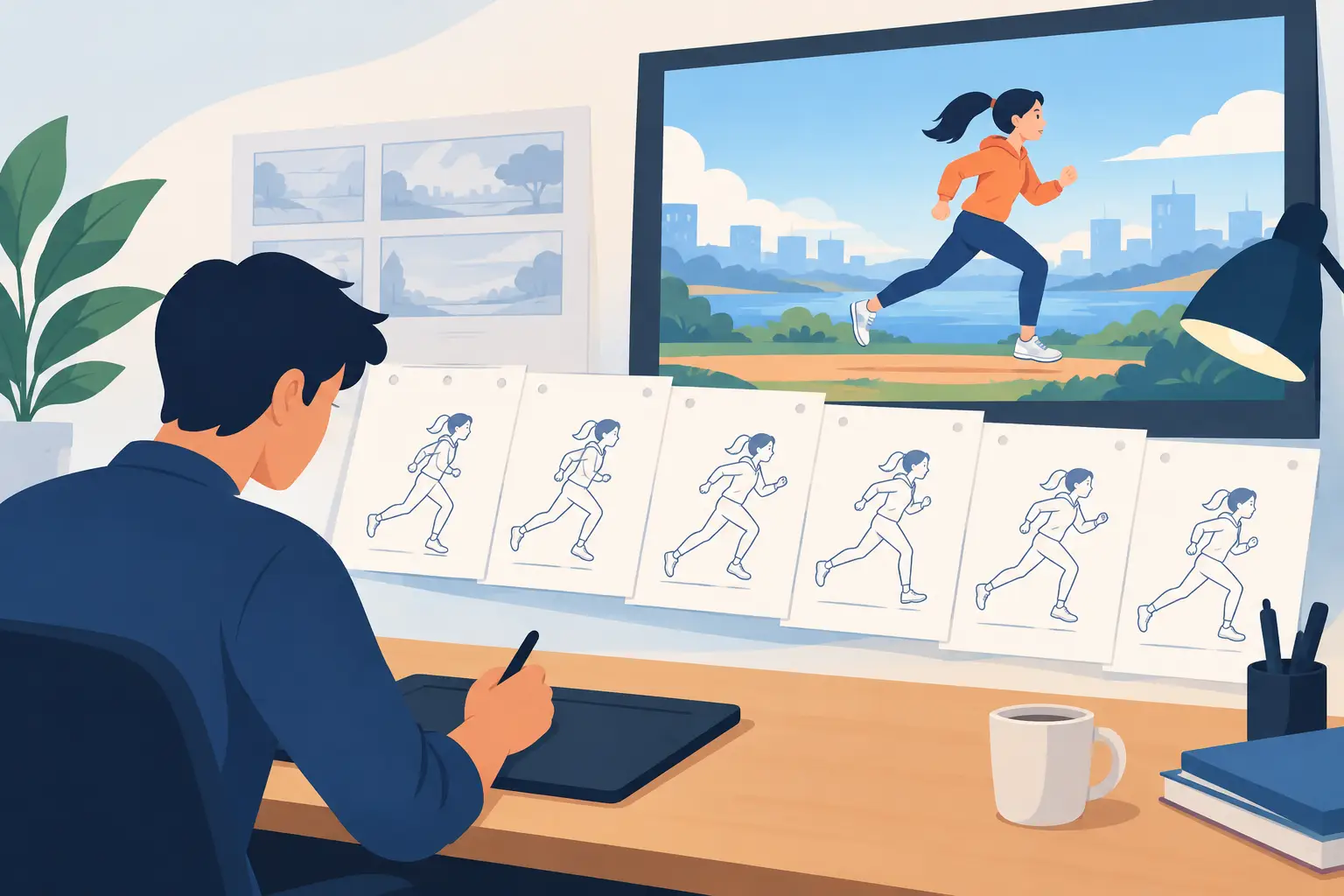
Look for tools that let you work loosely at the rough stage and precisely at clean-up. Roughs need speed. You are solving poses, weight, staging, and movement. Clean-up needs control. You are preserving the final line, clarifying overlaps, and preparing drawings for paint. Software that treats both stages as ordinary drawing tasks, rather than forcing a complex asset pipeline, lets the animator stay focused on performance.
Painting Should Not Slow the Production
Color is where many digital workflows lose time. A scene with dozens or hundreds of drawings can become tedious if every fill requires careful selection, repair, and repeat work. Fast painting is not a minor convenience. It protects the schedule and leaves more time for the parts of animation that viewers actually notice.
The right approach depends on the project. A pencil test may need only rough values. A finished short may need flats, shadows, highlights, and revisions after the director changes a pose. In either case, painting tools should make it easy to fill enclosed areas, correct colors, and keep the work moving without turning each frame into a separate problem.
Be wary of judging paint tools from a single polished demo. Test them on the kind of drawings you actually make: imperfect roughs, line gaps, overlapping characters, and shots with many frames. That is where efficiency shows up.
Timing Is the Feature That Separates Tools
Animation lives or dies on timing. A drawing can be beautiful and still feel wrong if the hold is too short, the acceleration is too even, or the action lands one frame late. Animators need to test these decisions constantly.
Many applications create an unnecessary loop: stop playback, open a timing control, change exposure, return to the scene, and play it again. Repeat that process across a shot and the interruption becomes expensive. More importantly, it breaks concentration. Timing decisions are often made by feel. You need to see the motion while you are shaping it.
Animation software designed for traditional production should let you adjust timing during playback. When you can lengthen a hold, shift a drawing, or alter exposure while the scene runs, you can hear and see the rhythm immediately. The stop-adjust-preview cycle disappears, and the animator can work closer to the way a director or assistant animator evaluates film.
This feature is especially valuable for students. Timing is difficult to learn from still images because the answer is not on the page. A pose might be strong, but its screen time may be wrong. Immediate playback and immediate adjustment connect the drawing lesson to the motion lesson.
Camera Moves Belong After the Performance Works
Pan, zoom, rotate, blur, and dissolve effects can give a scene finish and clarity. They can also hide a weak action for a few seconds. Use them after the character performance works at the basic level.
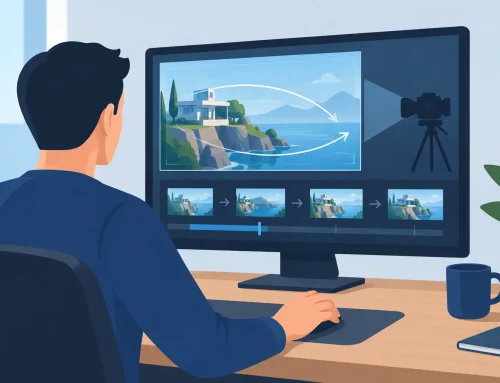
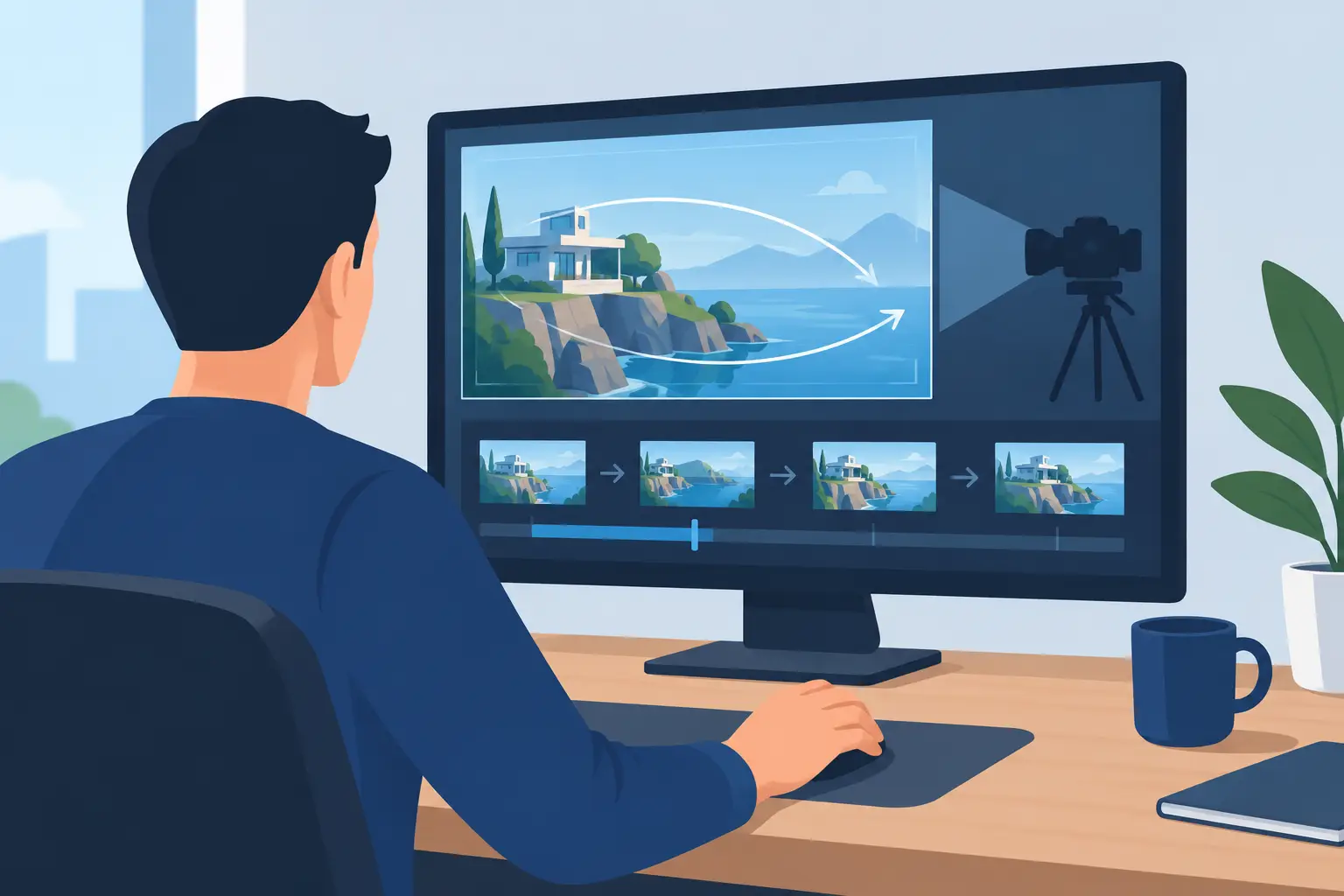
A practical program should let you apply camera-style moves without sending artwork into another application or rebuilding the shot. That helps independent animators and small studios handle basic compositing needs efficiently. Still, the priority should remain clear: get the drawings and timing right first. A camera pan cannot repair bad spacing.
How to Evaluate Animation Software Before You Commit
Free trials are useful only when you test a real workflow. Do not spend the entire trial exploring menus or copying a product tutorial. Build a short scene that includes the work you expect to do most often.
Start with a five- to ten-second action. Rough it out, add a simple clean-up pass, paint a few frames, and revise the timing after playback. Include a hold, a fast action, and a camera adjustment if your projects use them. This exposes the difference between software that looks capable and software that is comfortable to animate in every day.
Pay attention to friction. How long does it take to add or remove frames? Can you scrub the scene accurately? Does the program make it obvious which drawing is exposed where? Can you correct timing without losing your place? Are the paint tools fast enough that you would use them for a full scene rather than only a demo?
Support also matters, particularly when a deadline is close or a class is learning a new workflow. Published pricing, a clear trial, and free technical support are practical signs that a software company expects artists to use the product seriously. Vague pricing and hard-to-find help tend to create trouble at exactly the wrong time.
Choose a Workflow, Not a Feature Checklist
There is no single best application for every production. A 3D-heavy studio may need deep rigging and simulation tools. A motion design team may prioritize typography and compositing. But artists making frame-by-frame character animation should choose software based on the work at hand: drawing, painting, playback, timing, and finishing shots.
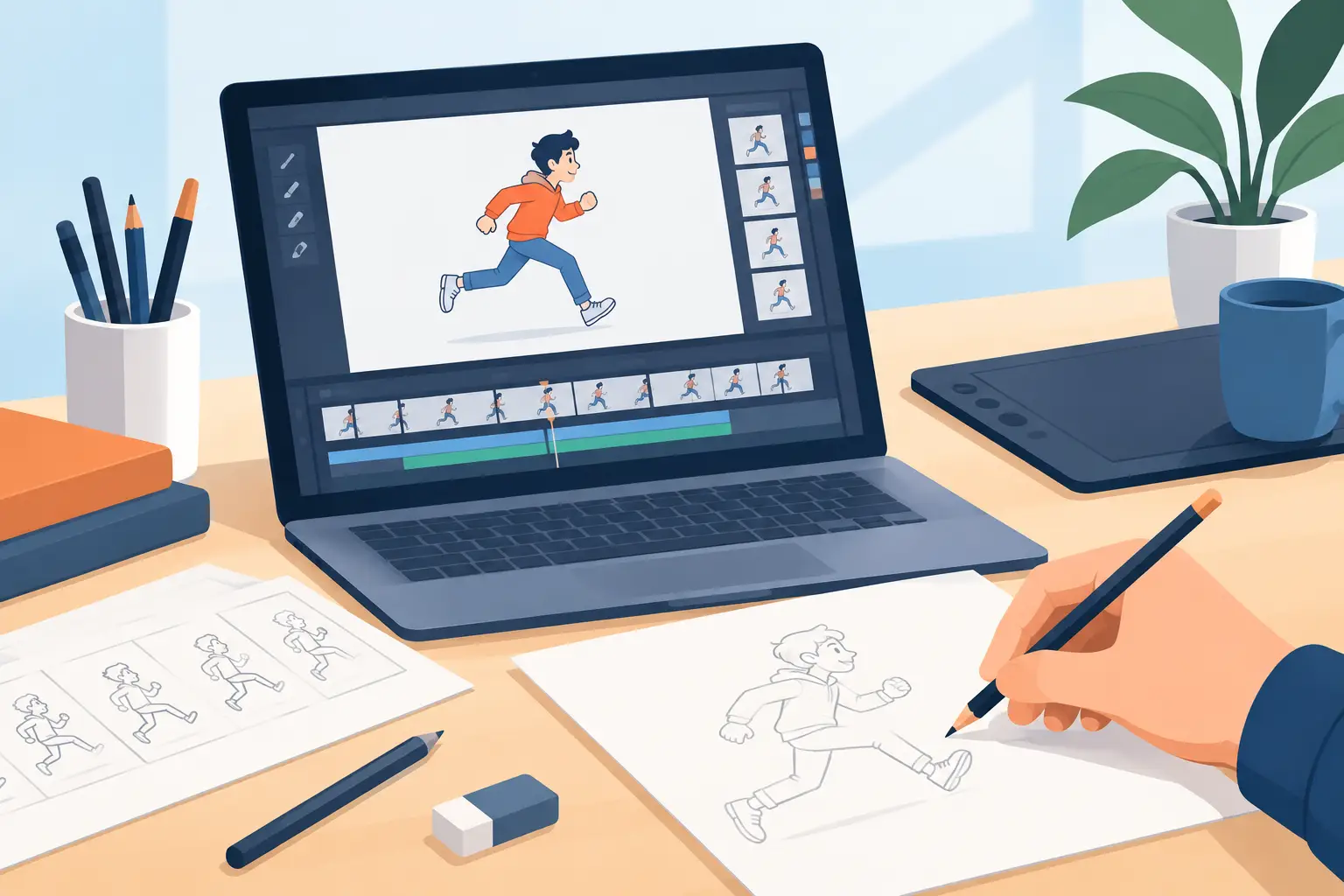
FlipBook is built around that traditional production logic. It gives animators a direct place to create roughs and clean-ups, paint frames quickly, scrub and play scenes, adjust timing as the scene runs, and add camera-style effects without abandoning the hand-drawn workflow. Its companion iPad app, FlipPad, can also make it easier to keep drawing when the desk is not available.
The best choice is the one that makes you want to test another pass instead of postponing it. Download a trial, animate a short scene you care about, and judge the software by the result on screen. When the tool stays out of the way, you can spend your attention where it belongs: on the drawings, the acting, and the timing that makes them move.