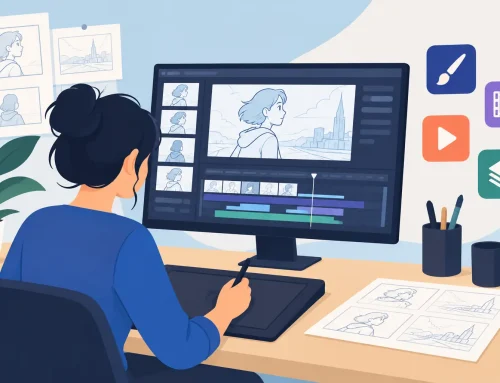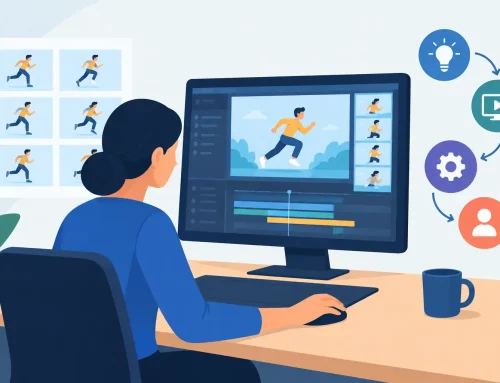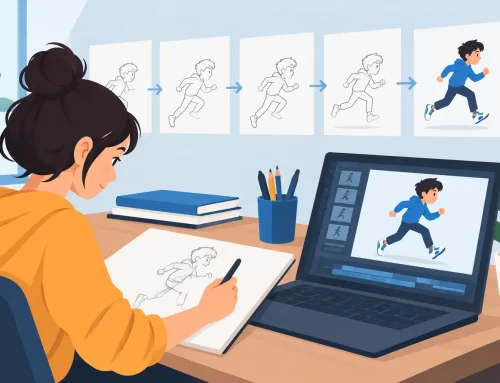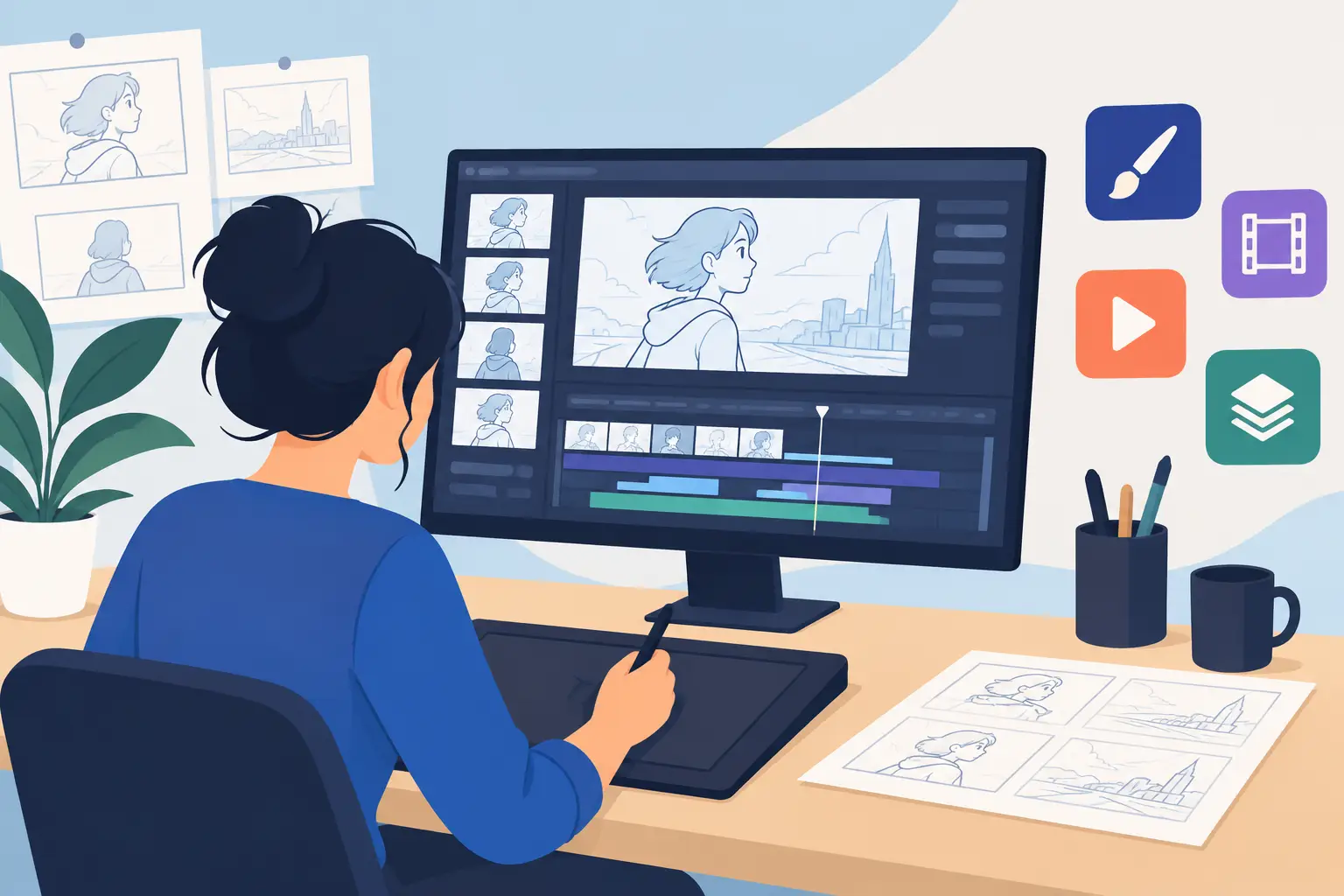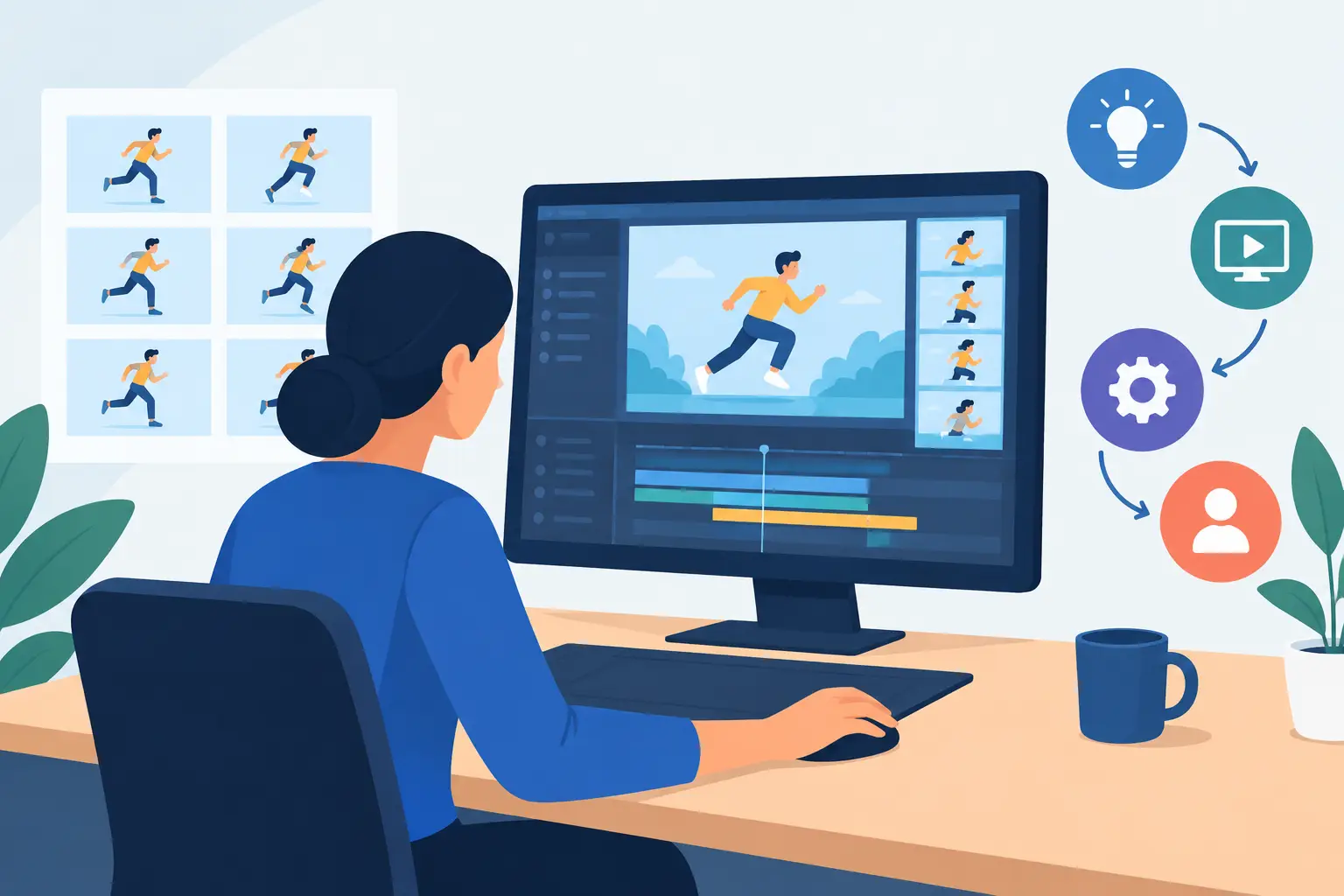
A walk cycle can look perfectly drawn on individual frames and still feel wrong the moment it plays. The contact may hold too long, the passing position may rush, or the character may seem to float because two drawings need to trade places. That is where scene playback editing software earns its place in a traditional animator’s workflow. It should help you judge motion as motion, then correct the timing without breaking concentration.
For hand-drawn animation, playback is not simply a preview button. It is the test of every creative decision on the scene: spacing, weight, rhythm, acting, holds, accents, and camera movement. Software that makes you stop, open a separate timing control, adjust a frame, and play again turns a creative process into clerical work. Better tools keep the scene visible and make timing changes part of the act of watching.
What Scene Playback Editing Software Should Do
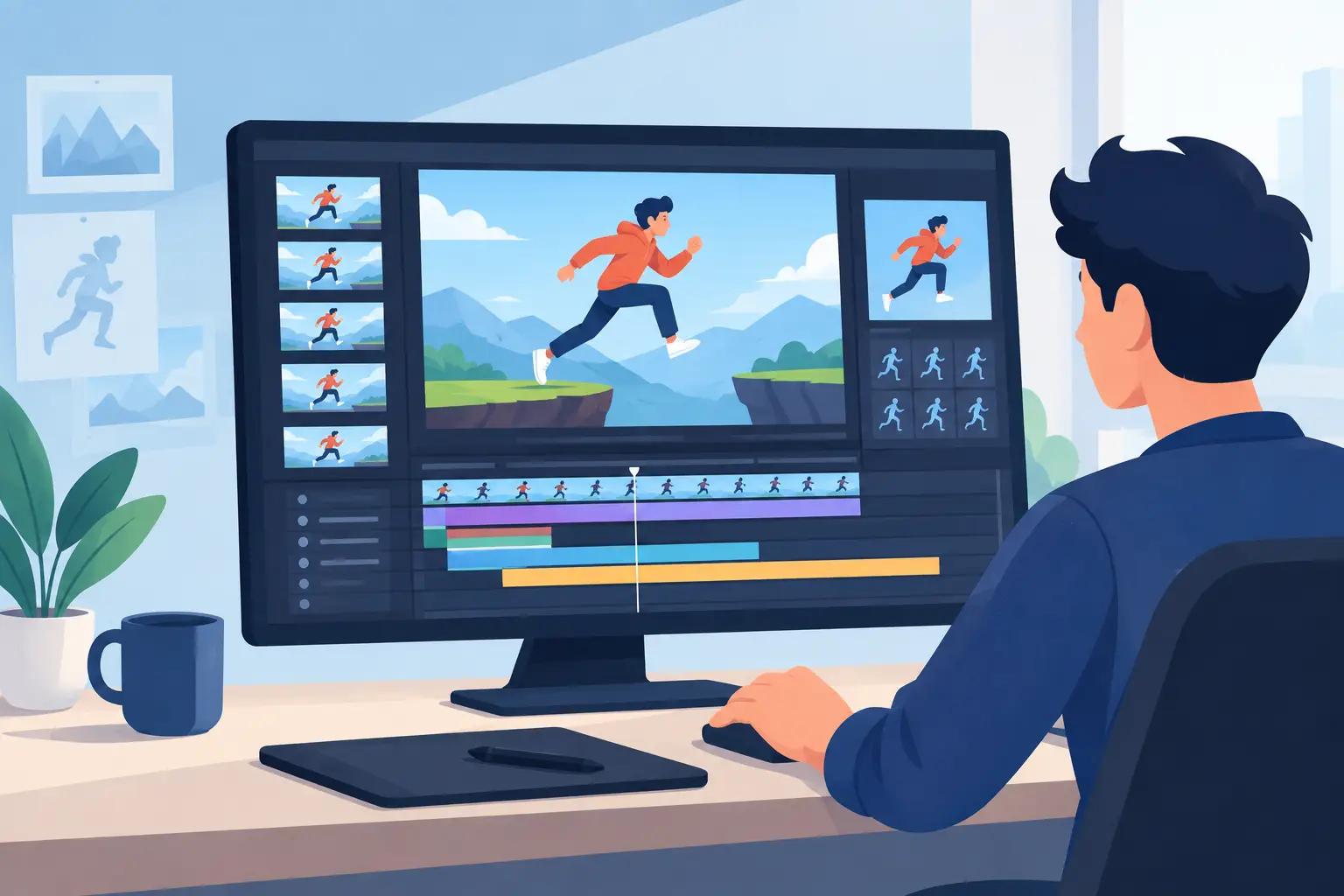
A useful playback editor gives you direct control over the drawings and exposure timing that create the illusion of life. You need to scrub to a specific pose, play a selected range, loop a difficult action, and see where each drawing lands. More importantly, you need to change the scene at the point where the problem becomes obvious.
Traditional animation is built on this constant exchange between drawing and playback. You rough out an action, run it, spot the weak beat, and adjust. Sometimes the answer is a new drawing. Sometimes it is an extra hold, a different exposure, or a small shift in spacing. The software should support all of those decisions without forcing you into a rigid editing pipeline designed for video clips rather than frame-by-frame animation.
The best scene playback editing software also makes room for different working habits. A student learning a bouncing ball may need to loop six frames repeatedly to understand spacing. A professional animator may need to play a dialogue shot at speed, adjust the timing of a blink while it runs, and then check the full scene in context. Both need precision, but they do not need unnecessary complexity.
Playback Reveals Timing Problems Drawings Can Hide
A drawing board tells you whether a pose is clear. Playback tells you whether the pose arrives at the right moment. Those are separate questions.
Consider a character lifting a heavy box. The anticipation may be well drawn, but if it lasts one frame too little, the lift can feel effortless. Hold the anticipation longer and the audience reads preparation and weight. On the other hand, an extra frame on the lift itself can make the action drag. These are timing decisions, and they only become clear when the scene is moving.
This is why animators need playback that responds quickly. If every test requires exporting, rendering, or stepping through a stack of panels, you will test less often. When testing is immediate, you can refine the action while your eye still remembers what felt wrong.
Edit Timing While the Scene Is Playing
The most valuable feature in scene playback editing software is the ability to make timing changes during playback. This removes the old stop-adjust-preview cycle that interrupts animation work hundreds of times in a production.
When a scene is running, you can see the exact frame that needs attention. Perhaps a head turn snaps too sharply, or a reaction needs two more frames before the character speaks. Being able to alter timing while watching lets you respond to the action in real time. You are not guessing which frame was the problem after the playback stops. You are working from what your eye just saw.
That difference matters most in shots with subtle acting. A tiny pause before a look-away, a held expression after a line, or a delayed hand movement can change the meaning of a performance. These adjustments are often too small to identify from a timeline alone. You need to feel the rhythm of the shot.
FlipBook is built around that production reality. Its real-time timing controls let animators adjust a scene during playback, so the process stays close to the traditional method of flipping drawings and judging the action immediately. The result is faster iteration without giving up the hands-on control that good 2D animation requires.
Scrubbing and Looping Are Working Tools, Not Extras
Scrubbing is how you inspect an action frame by frame. It helps you find a pop in the arc, a misplaced in-between, a drawing that does not match the volume of the previous frame, or a hold that starts too early. A responsive scrubber should move through the scene without lag, because an animator’s eye is comparing one drawing to the next at speed.
Looping serves a different purpose. It lets you focus on a problem area until the solution becomes clear. A looping run cycle exposes uneven spacing. A looping blink shows whether the eyelids close and open with the right speed. A looping camera move reveals whether the pan supports the action or distracts from it.
Do not confuse endless looping with useful review. Set a short range around the action you are solving, then return to the full scene regularly. A fix that looks excellent in isolation may feel too broad or too slow once it plays with the surrounding acting and camera work.
Choose Tools That Respect the Drawing Process
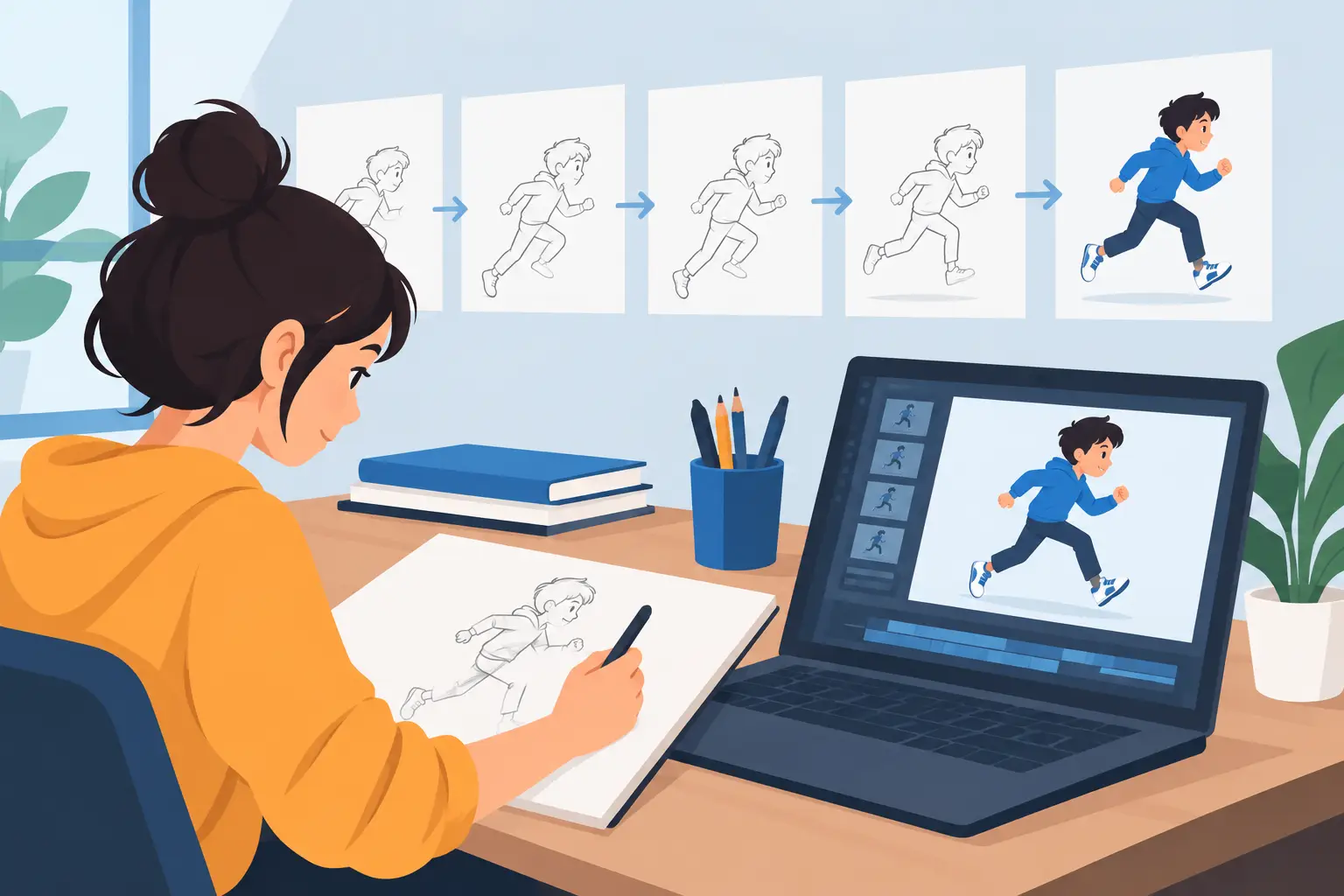
Some animation applications begin with compositing, rigging, or elaborate asset management. Those tools can be appropriate for certain productions, but they are not automatically the right answer for a hand-drawn scene. If your work begins with rough poses, paper-like drawing, clean-up, and painted frames, your playback editor should be built around those stages.
Look for a workflow where you can draw, paint, play, scrub, and retime without constantly changing modes. The fewer technical barriers between rough animation and playback, the more often you can evaluate the actual performance. That is where scenes improve.
Painting speed also affects playback decisions. If color work is slow, you may postpone checking the scene with finished elements and miss problems in readability, contrast, or effects timing. Efficient paint tools make it practical to see the scene closer to its intended form before the deadline is pressing.
Camera-style controls deserve the same attention. Pan, zoom, rotate, blur, and dissolve effects can strengthen staging, but they should serve the drawings rather than cover weak animation. Test them in playback from the beginning. A camera move changes how long the audience reads a pose and can alter the apparent speed of the action underneath it.
A Practical Playback Review Method
Start by playing the whole scene without touching anything. Watch it as an audience would. Do not search for technical flaws yet. Ask one simple question: where does your attention go, and does the action communicate clearly?
Then review the scene in shorter passes. Check the main poses first. Are the storytelling poses held long enough to read? Are the transitions between them clean? Next, inspect spacing and arcs by scrubbing through the action. Finally, loop any section that still feels uneven and change only what the playback proves needs changing.
It helps to separate timing problems from drawing problems. If a pose works when held longer, the drawing may be fine. If the action still feels weak after timing changes, you may need a stronger breakdown or a new key pose. This distinction prevents unnecessary redraws and keeps the scene moving forward.
For dialogue, listen before you watch too closely. Let the soundtrack establish the beat, then check whether the mouth shapes, head movement, and eye action support the performance instead of mechanically following every sound. For physical action, watch first with the sound off. Weight and force should read from the drawings alone.
The Right Software Keeps You in the Scene
Animation timing is not a finishing task. It starts with the first rough pass and continues through clean-up, color, camera work, and final review. The more naturally your software supports playback editing, the more opportunities you have to catch the small decisions that make a scene believable.
Choose a tool that lets you stay focused on drawings and motion, not on managing the software. Download a free trial, put a real scene through its paces, and test the moments that usually slow you down. If timing changes feel immediate, you will spend more of your day making drawings come alive instead of waiting to see whether they work.