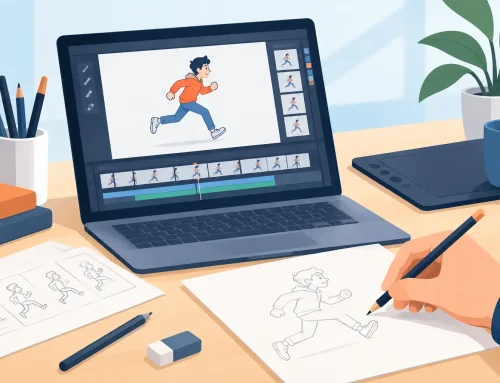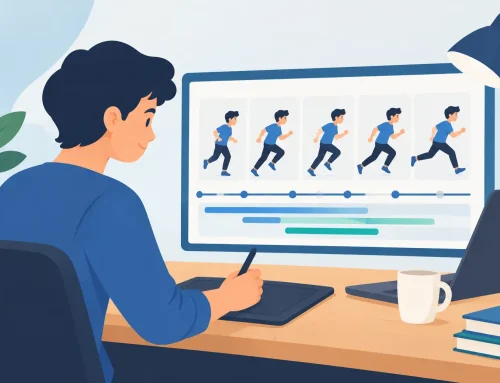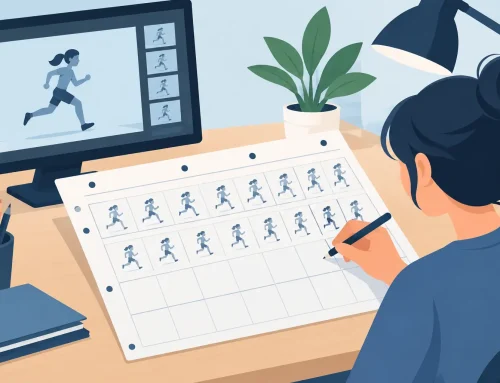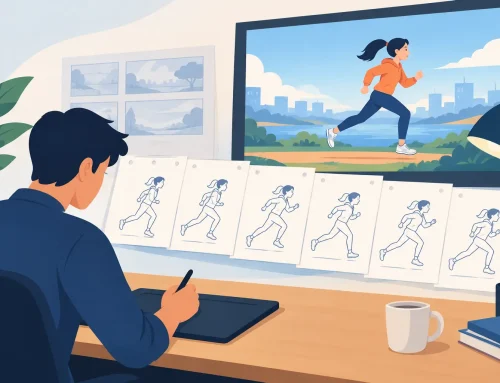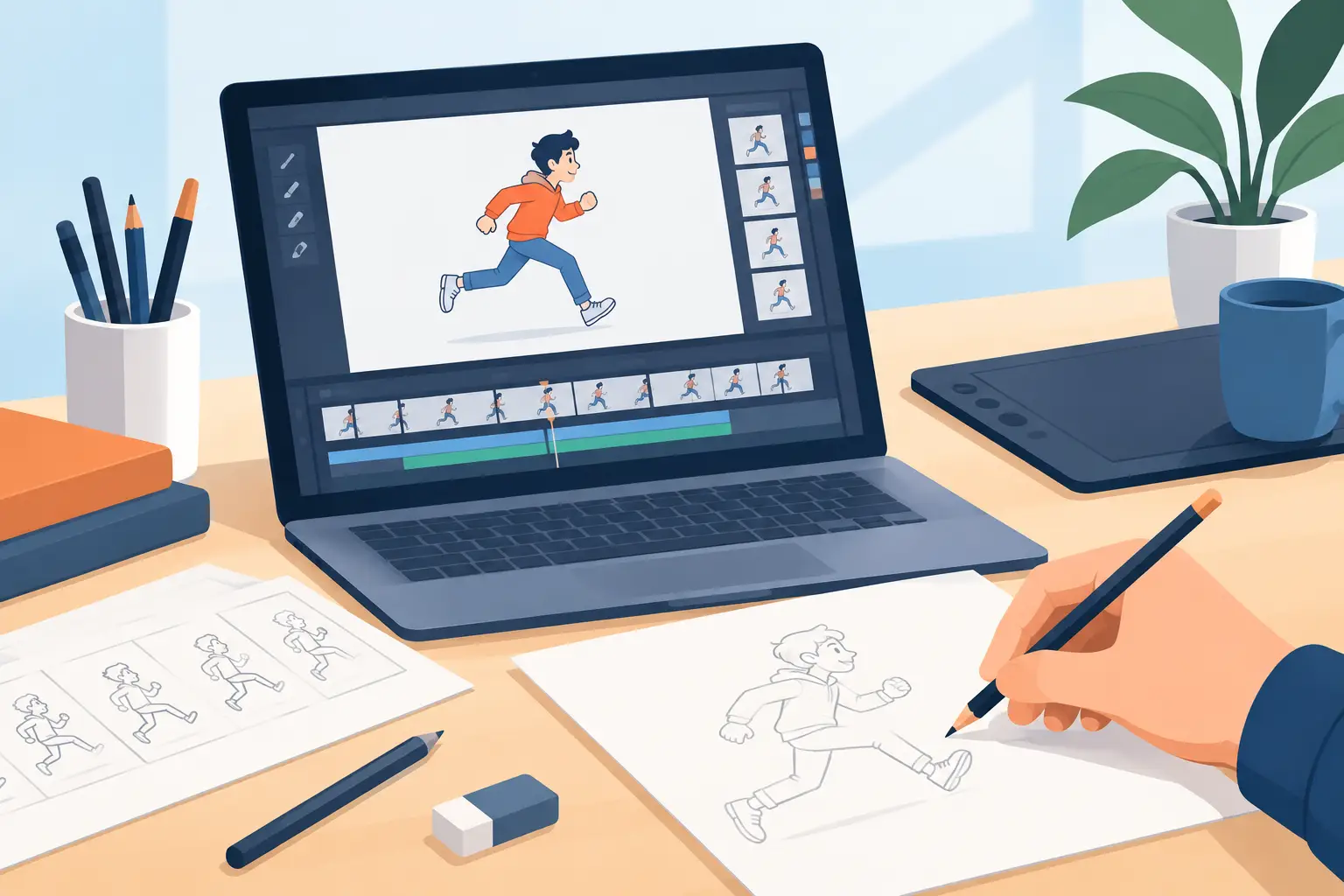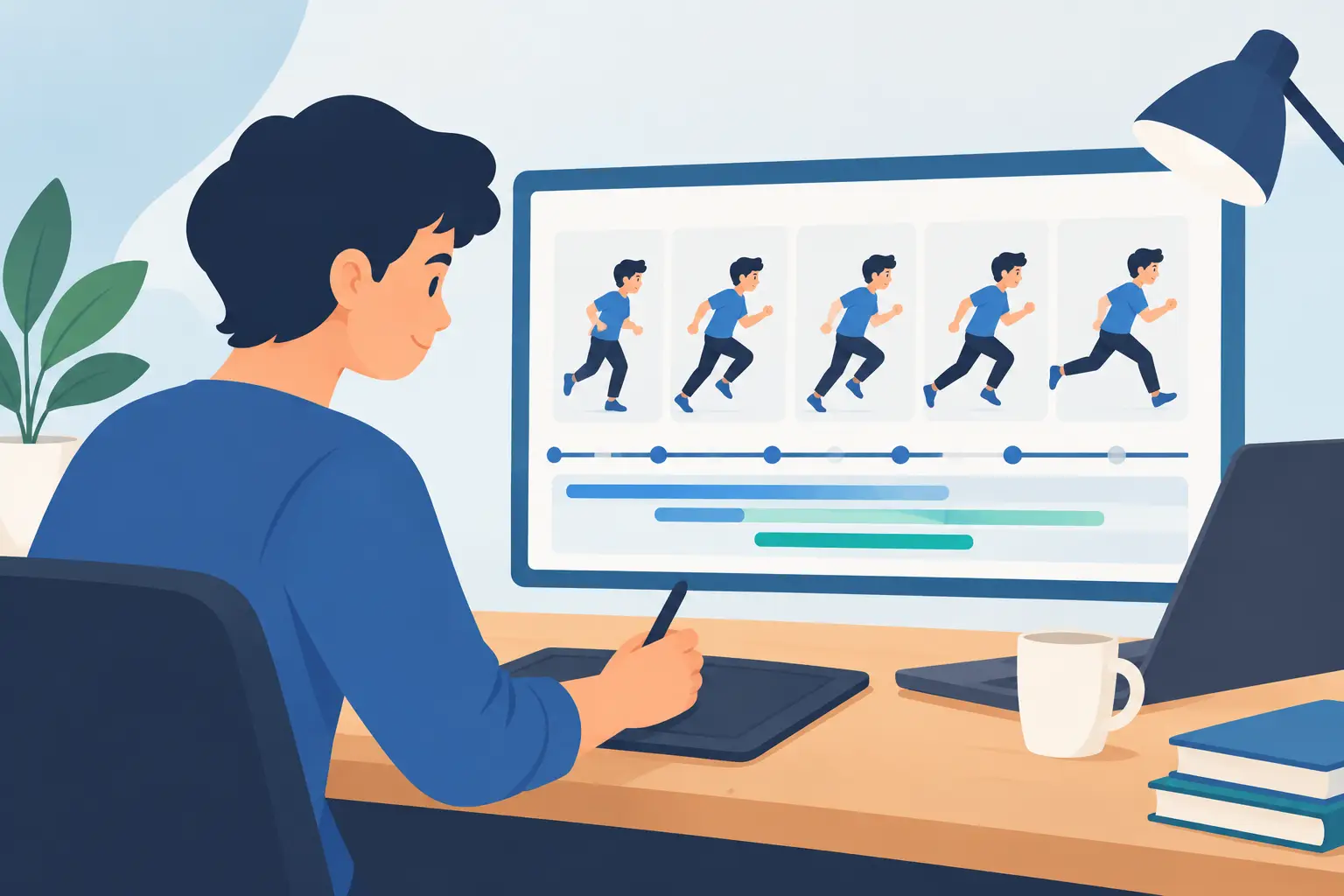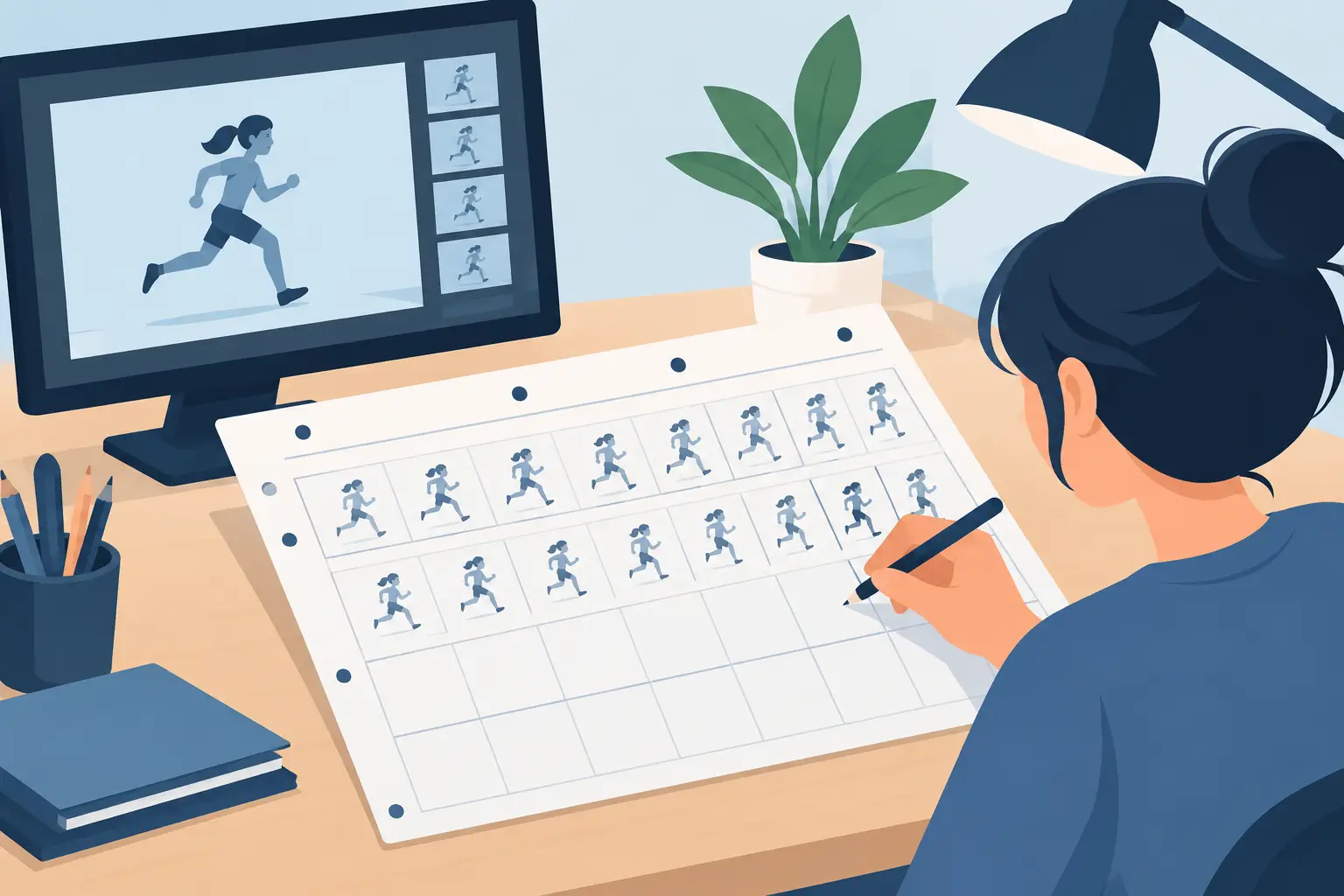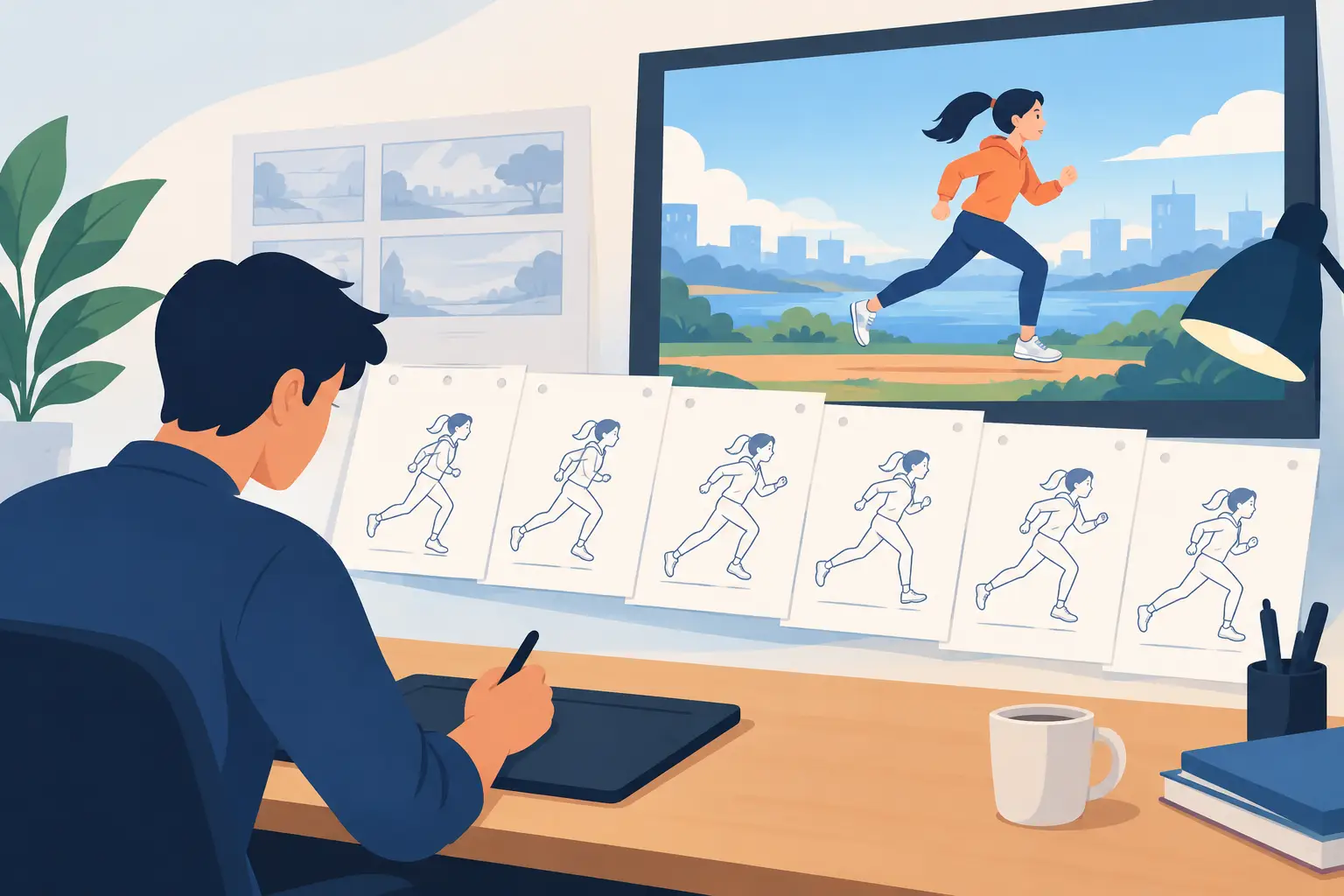
A camera move can make a simple drawing feel cinematic, but it can also bury the action, ruin a gag, or make a carefully animated performance hard to read. Knowing how to preview camera moves before committing to cleanup and color saves a great deal of rework. The goal is not to make the camera look busy. The goal is to make every pan, zoom, rotation, or dissolve serve the shot.
In traditional animation, the camera is part of the staging. It controls what the audience sees, when they see it, and how strongly they feel a moment. Treat it with the same care you give a character pose or an exposure change.
Start With the Shot’s Job
Before setting any camera keyframes, state what the shot must accomplish. A slow push-in may need to bring the audience into a character’s realization. A pan may need to reveal information at the correct beat. A zoom out may need to show that a character is much smaller, or much more isolated, than the previous framing suggested.
If you cannot name the reason for the move, leave the camera still. A locked camera is not a failure of imagination. It is often the clearest choice for hand-drawn animation, especially when the character action already has strong arcs, changes in scale, or quick timing.
Also identify the shot’s anchor. This is the thing the audience must continue to understand while the view changes: a character’s eyes, a hand reaching for an object, a doorway, or the path of a thrown prop. Previewing becomes much easier when you know what must remain readable from beginning to end.
How to Preview Camera Moves With Rough Drawings
Do not wait for finished art. Use rough drawings, simple background guides, and temporary color blocks. A camera test should answer staging questions, not prove that you can finish a painting.
Start by laying out the widest view of the scene. This is your field of action. Draw enough of the set to cover the full area that the camera may reveal. If a pan exposes empty space beyond the background edge, the problem is not the pan itself. The layout was not built for the move.
Next, mark your starting and ending frames. On the first frame, check composition as a still image. Is the subject clearly placed? Is there enough room in the direction the character is looking, walking, or reaching? On the final frame, make the same check. A move with two good endpoints can still fail in the middle, but weak endpoints guarantee trouble.
Then scrub between them. Look for the moment when the move starts to pull attention away from the action. A camera move should generally accelerate, ease, and settle with purpose. For a quiet dramatic push-in, a gentle ease at both ends usually feels right. For a sudden reveal, a faster move may be appropriate, but the reveal must land on the story beat rather than drifting past it.
Preview at normal speed, then watch again without sound. Sound can make an awkward move feel more convincing than it is. A silent pass tells you whether the staging, timing, and screen direction stand on their own.
Keep the camera move separate from character timing
A common mistake is changing the camera and character action at the same time, then trying to judge both. First preview the rough animation with a locked camera. Make sure the acting reads. Then preview the camera move over that approved action.
This separation reveals whether the move improves the shot or merely disguises weak timing. It also keeps you from adjusting drawings to compensate for a camera problem. In production, that distinction protects your schedule.
There are exceptions. A character may deliberately move with the camera, such as running beside a tracking shot or leaning into a fast push-in. Even then, establish a simple version of the character action before polishing the relationship between the two motions.
Watch the frame edges, not only the center
Animators naturally watch the face or main action. During a camera preview, train yourself to watch all four frame edges as well. Props can enter too early, background lines can create accidental tangents, and a character’s hand can be cropped at the worst possible moment.
Frame edges are especially important in a pan. If the camera moves left while the character walks right, the shot may appear to have more energy than it actually does. Make sure the opposing motion does not create visual confusion. The audience should know whether the character is moving through the world, the world is moving past the character, or both.
Test the Move at Production Speed
A camera move that looks elegant when scrubbed frame by frame may feel sluggish in playback. Conversely, a move that seems abrupt while you are adjusting keys can play perfectly once the shot has its intended frame rate.
Run the scene repeatedly at the final speed. Ask practical questions: Can you identify the focal point immediately? Does the movement begin on the intended beat? Does the camera settle before the next important action? Can you follow the action without searching for it?
For a useful test, duplicate the shot and compare three versions: no move, a restrained move, and the move you originally planned. The restrained version often wins. Traditional animation already contains movement in the drawings, and the camera should add emphasis rather than compete for attention.
Scale changes need special care. A zoom changes more than framing. It changes the apparent speed of background detail crossing the screen and can make painted textures shimmer or crawl. Preview your zoom over representative artwork, not just blank layout drawings. If the background is dense, reduce the speed of the zoom or simplify the detail that crosses the frame.
Rotation deserves even more restraint. A slight rotation can support imbalance, surprise, or a comic hit. Too much rotation makes the shot feel like an effect looking for a reason. Check the horizon, vertical architecture, and character balance. If these elements become distracting, the rotation is probably stronger than the scene needs.
Use Real-Time Adjustment to Find the Right Timing
The best camera timing is rarely found in one guess. You need to see the move, adjust it, and see the result again while the rhythm of the scene is still fresh in your mind. Stopping to rebuild timing after every small change interrupts the animation process and encourages settling for a merely acceptable result.
In FlipBook, camera-style effects such as pan, zoom, rotate, blur, and dissolve can be previewed alongside the scene, while real-time timing adjustment lets you evaluate changes in motion without breaking your flow. That matters when you are balancing a camera push against a held expression or matching a pan to a character’s walk cycle. You can judge the shot as animation, not as a collection of settings.
Work from broad decisions to fine corrections. First decide the direction and distance of the move. Then adjust when it begins and ends. Only after that should you refine easing, blur, or a dissolve. Blur can help sell speed, but it cannot repair unclear staging. A dissolve can soften a transition, but it should not hide a cut that lacks a story reason.
Common Preview Problems and What They Mean
When a camera move feels wrong, the answer is not always to change its speed. Often the preview is exposing a deeper layout or timing problem.
If the subject drifts out of attention, your focal point may be poorly staged or the camera may be moving in the wrong direction. If the shot feels floaty, tighten the beginning or end of the move so it has a clear intention. If the background seems to slide independently from the character, check whether you need a multi-level setup or whether the move should be simpler.
If a pan feels long, do not automatically speed it up. The audience may need a stronger reason to travel across that distance. Add a reveal, a character action, or a new piece of information at the destination. If none belongs there, shorten the pan or cut between the two compositions.
A preview also catches continuity issues. Compare the end of one shot to the beginning of the next. Large shifts in screen direction, scale, or camera height can be useful when intentional, but accidental jumps make a sequence feel disconnected. The camera is helping tell one scene, not showing off one shot at a time.
Make the Final Decision From the Audience’s View
After you have watched the test many times, take a short break and come back to it cold. Then watch once without touching anything. If you notice the camera before you notice the story, simplify the move.
The strongest camera work in drawn animation often feels inevitable. The audience does not stop to admire the pan or zoom because the framing arrives exactly where the performance needs it. Build your test early, keep the drawings rough until the staging works, and let the camera earn every frame it moves.