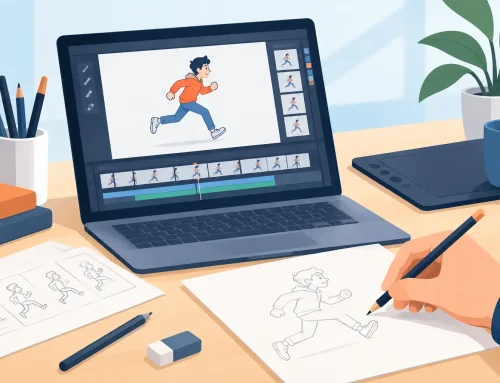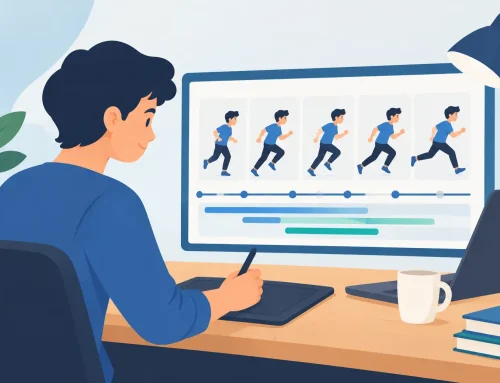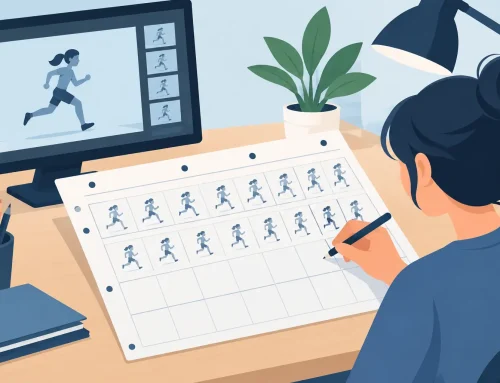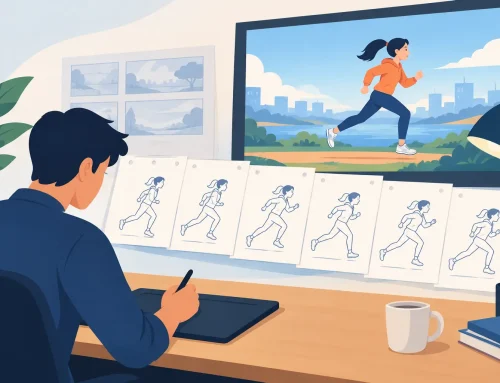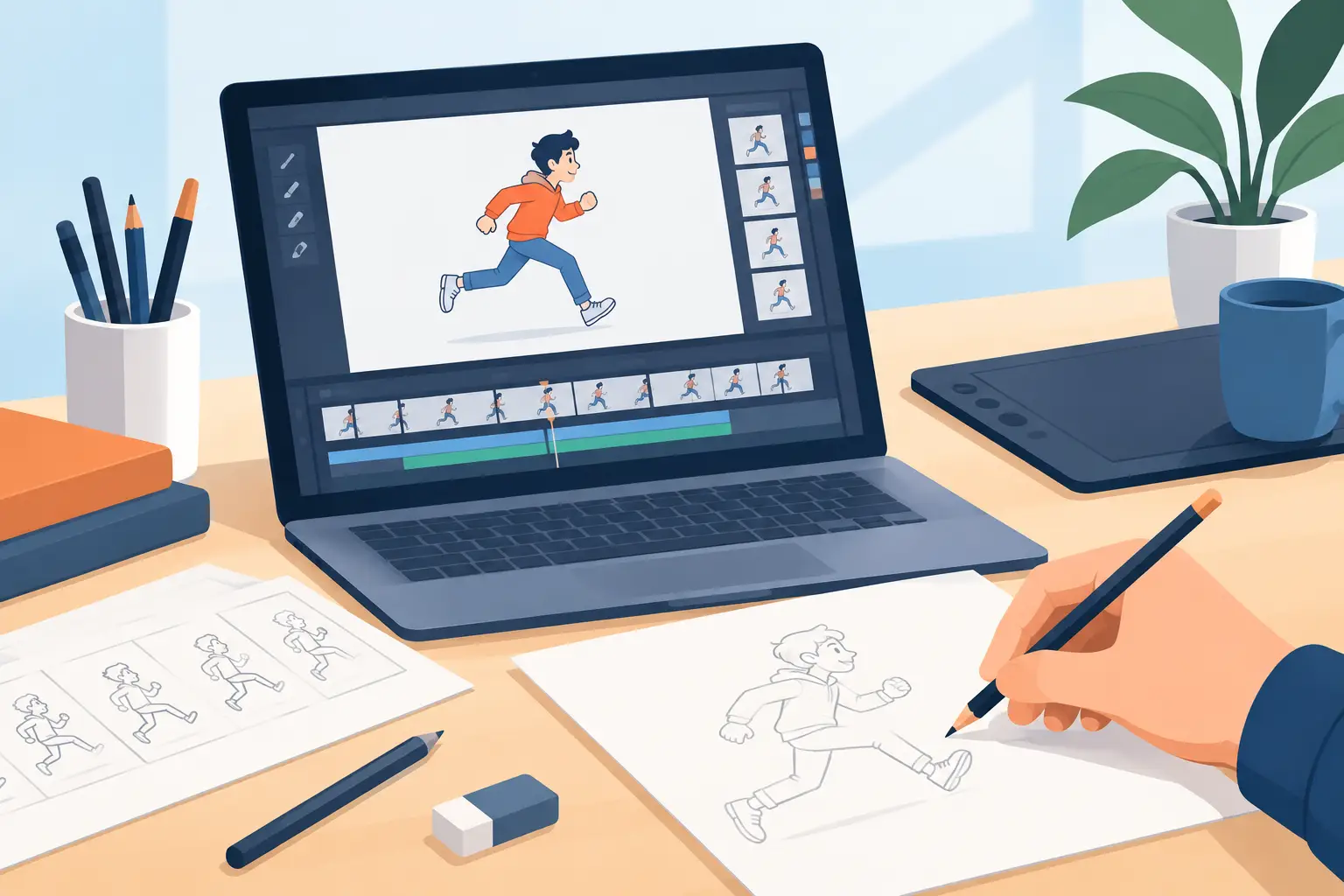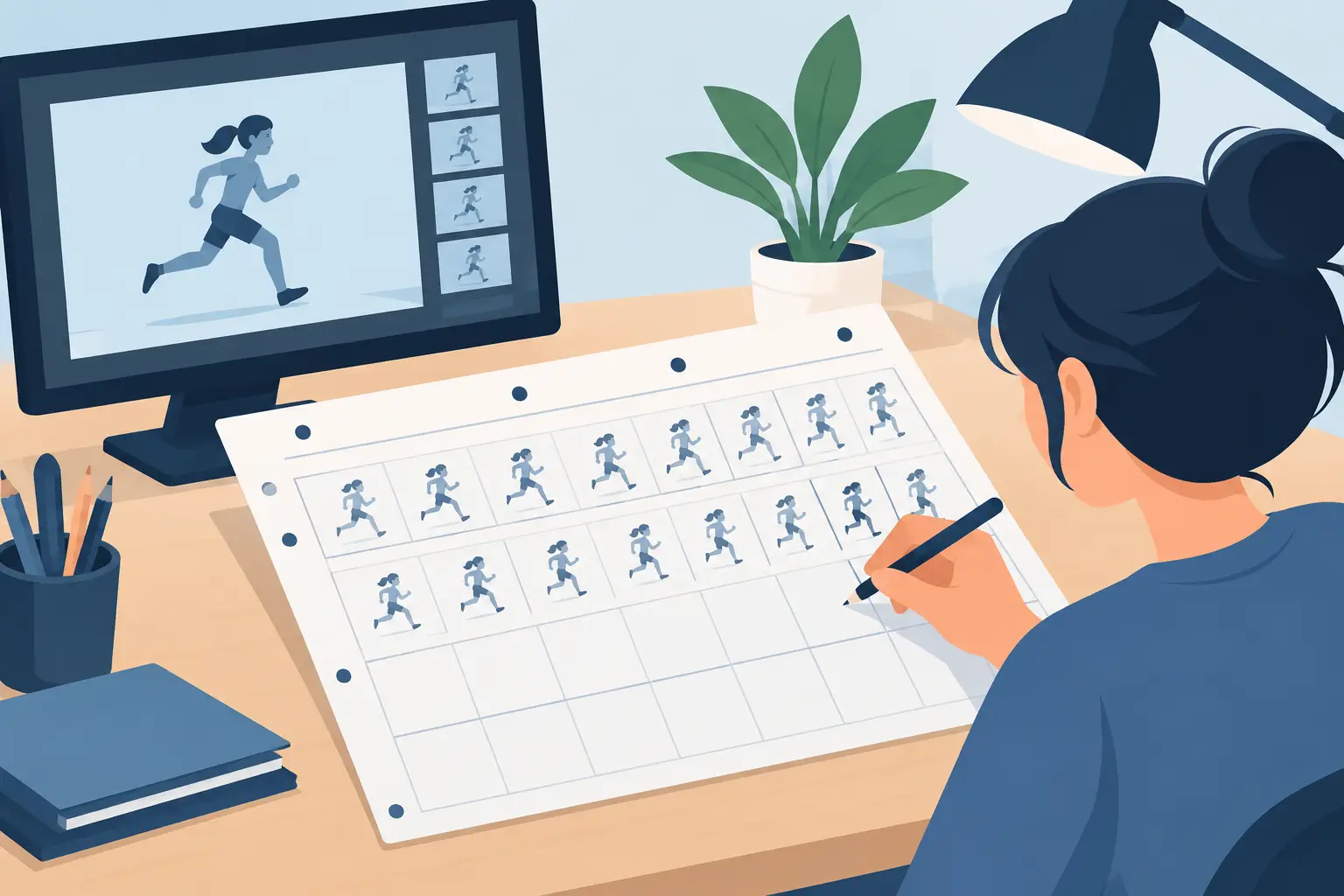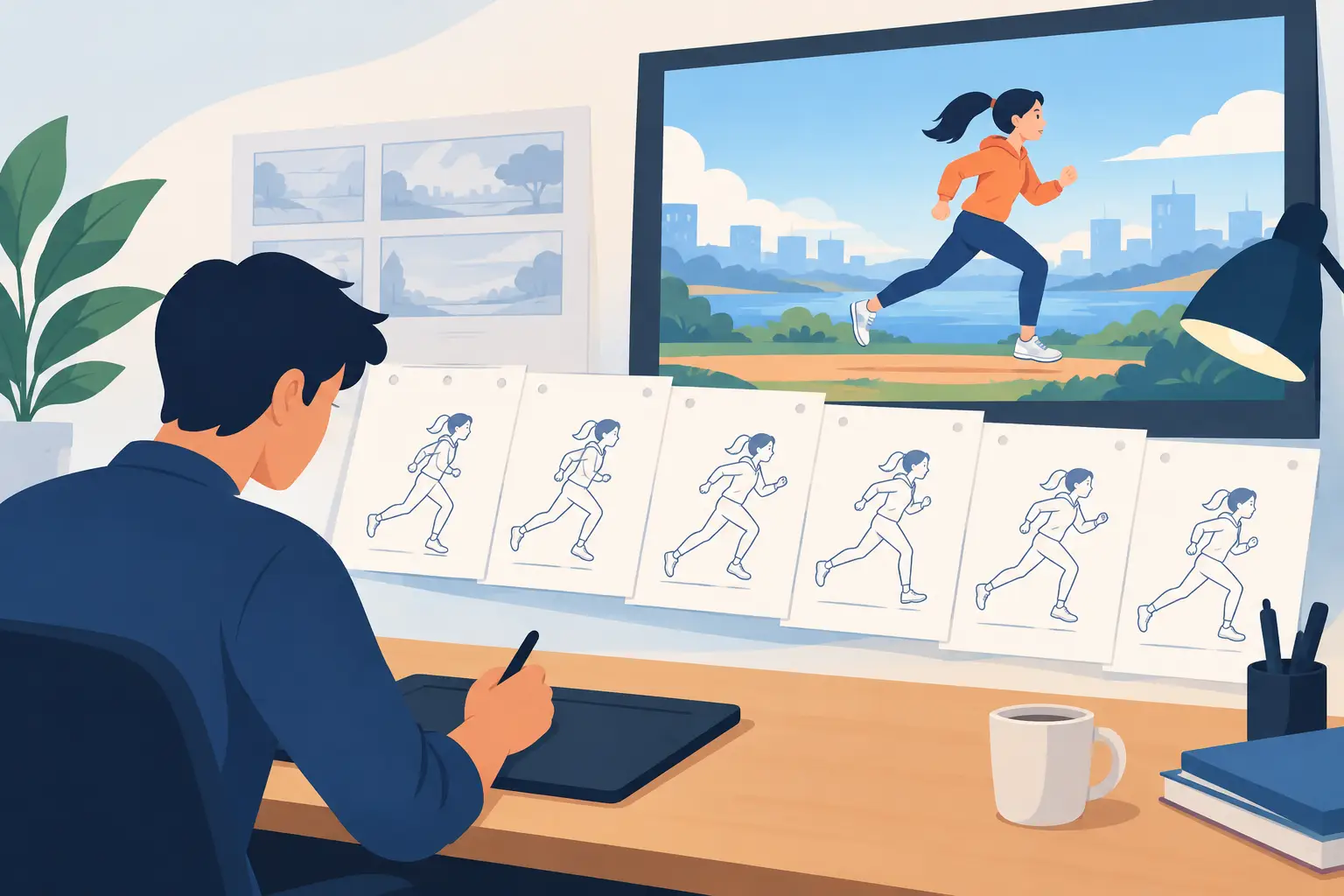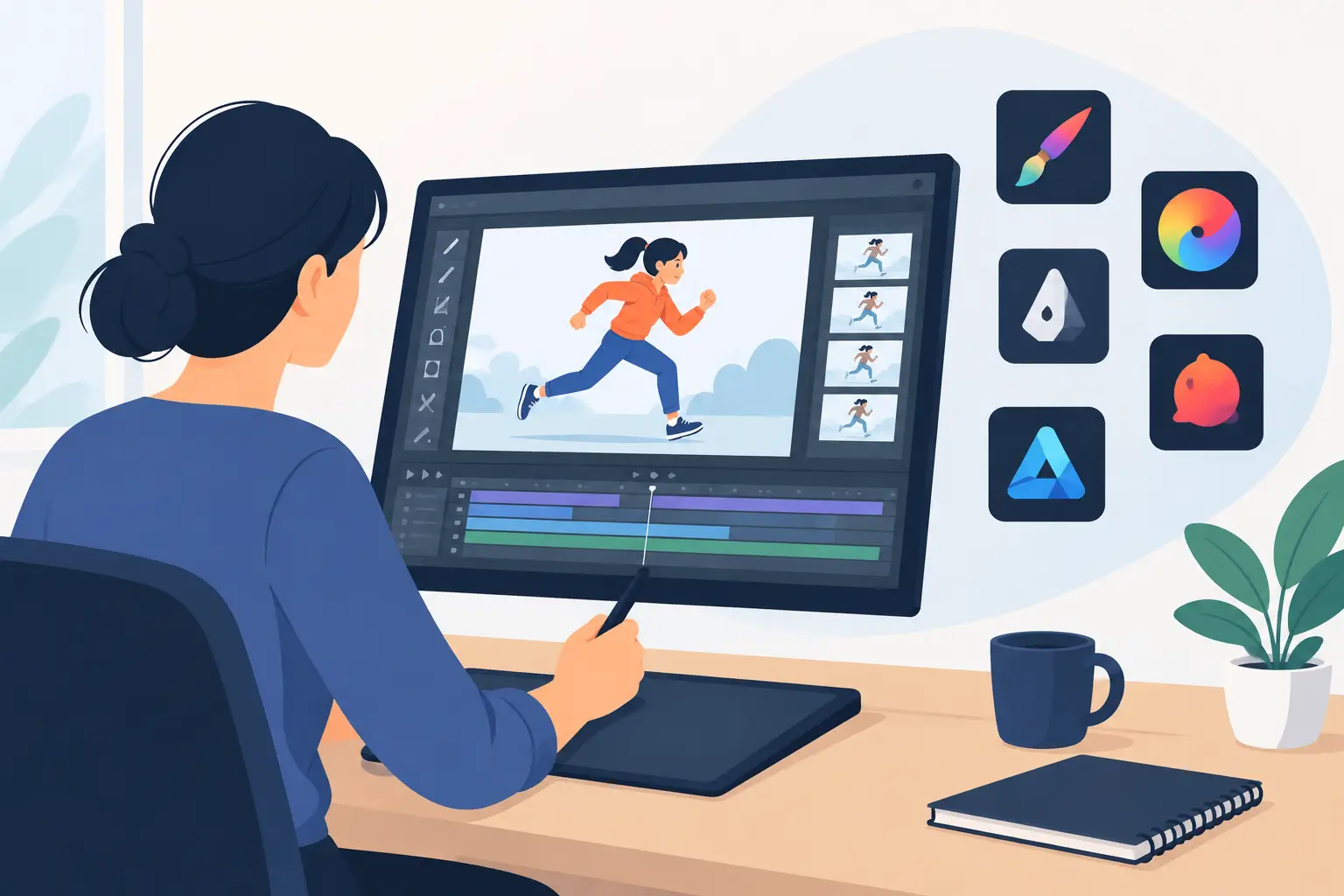
A painted animation scene can look finished long before it is actually ready to play. The colors may be right, but if painting each drawing takes too many clicks, the work will stall before the shot is complete. The best paint software for 2D animation does more than fill enclosed areas. It keeps your hands moving from roughs to clean-up, color, timing, and final playback without turning a traditional drawing process into a technical chore.
For hand-drawn animators, the question is not simply which app has the longest feature list. It is whether the software respects the way animation is made: one drawing at a time, one decision at a time, with timing visible and changeable while the scene is alive on screen.
What the Best Paint Software Must Do for Animators
General-purpose painting programs can make beautiful single images. That does not automatically make them a good fit for painted animation. A production scene may contain dozens or hundreds of drawings, repeated colors, line art that needs to remain clean, and changes that must carry across a sequence without creating new errors.
A capable animation painting tool starts with dependable control. You should be able to paint areas quickly, choose colors without hunting through menus, correct a missed edge, and move to the next drawing without losing your place. The more often a program makes you stop to manage files, rebuild layers, or wait for a preview, the more it interrupts the actual work.
It also needs to keep paint connected to the drawing workflow. Animators commonly rough out action, refine the drawing, clean it up, and paint it in stages. Software that treats every frame as an isolated illustration adds unnecessary overhead. Software designed for animation keeps the scene, drawings, and timing together so you can judge the painted work where it matters: in motion.
Start With Your Type of Animation
The right choice depends on what you are producing. A motion graphics artist who creates shape-based explainer videos has different needs from an animator drawing character action frame by frame. A concept artist making still illustrations needs a different tool again.
For traditional 2D animation, prioritize a natural drawing surface, quick frame painting, onion-skin support, easy scene playback, and timing control. These are the features that help you learn spacing, refine arcs, and keep a performance readable. A sophisticated brush engine is useful, but it cannot compensate for a clumsy workflow once you have 150 drawings to paint.
For cutout animation, look more closely at rigging, reusable parts, deformers, and keyframe controls. For still painting, canvas tools, texture brushes, color management, and compositing may matter more than exposure sheets or frame-by-frame playback. There is no prize for buying a larger package than the work requires. Choose the tool that makes your next shot easier to finish.
Painting Speed Is a Production Feature
Coloring is often described as a finishing step. In production, it is a schedule issue. Small delays become large ones when they happen on every drawing of every scene.
Look at how the software handles common paint tasks. Can you fill an area cleanly without constantly repairing gaps? Can you reuse a palette across a scene? Can you select, replace, and adjust colors without digging through separate windows? Can you see your painted frames play immediately?
The best setup does not force an animator to choose between speed and control. Fast fills are valuable, but only if you can correct them precisely. Automatic tools are helpful, but only if they do not create unexpected color spill or make clean-up harder. Test this with a real drawing, not a polished demo file. Bring in a character with overlapping shapes, thin lines, and small details, then paint ten or twenty frames. You will quickly see whether the program supports production or merely demonstrates well.
Keep line and color work practical
Traditional animation depends on clear separation of tasks, even when one person performs all of them. Rough drawings need to stay loose. Clean-up needs accuracy. Color needs to sit correctly beneath the line work. A useful program makes those stages easy to manage without burying the animator under layer administration.
This is where a purpose-built 2D animation application can save real time. FlipBook, for example, is built around drawing, painting, and playing a scene in the same traditional workflow rather than asking artists to assemble an animation pipeline from unrelated tools. The goal is simple: spend less effort operating software and more effort making drawings come alive.
Drawing Feel Still Matters
Digital convenience is valuable only when it does not flatten the drawing experience. Animators need to feel the pose, adjust a contour, test an expression, and make a line decision quickly. If strokes lag, tools feel detached from the hand, or the interface hides the frame you need, the software gets between the animator and the performance.
Evaluate drawing feel with a short test. Sketch a walk-cycle rough, turn on onion skinning, make a clean-up pass, then scrub through the scene. Notice whether it is easy to find the next drawing, compare it with the previous one, and make a correction without breaking concentration. A program can have impressive effects and still be the wrong choice if basic drawing feels slow or unnatural.
Students should take this seriously. The best software for learning animation is not necessarily the one with the most automated features. Learning to draw poses, control spacing, and read timing frame by frame builds judgment. Helpful tools should support that learning, not conceal it.
Timing Control Separates Animation Software From Paint Apps
A painted drawing is only one part of a shot. Animation exists in the relationship between drawings: holds, accents, accelerations, pauses, and the small changes that make movement feel intentional.
Many programs make timing edits into a stop-adjust-preview cycle. You change exposures or move frames, play the scene, stop it, and repeat until the rhythm is close. That workflow can make simple timing changes feel expensive, so animators delay them. Delayed timing decisions often become rushed timing decisions.
A better approach lets you adjust timing while the scene plays. When you can see the result of an exposure change immediately, you can work by eye and feel, as animators traditionally do at the pencil-test stage. This is especially useful for dialogue, comedy, action accents, and any shot where a two-frame difference changes the performance.
Do not overlook playback quality when comparing paint software. Check whether you can scrub quickly, loop a section, preview at the intended frame rate, and see the scene clearly enough to judge it. If playback is unreliable or awkward, every creative decision becomes slower.
Effects Should Support the Shot, Not Replace It
Pan, zoom, rotate, blur, and dissolve effects can add production value without sending a scene to another application. For independent filmmakers and small studios, having camera-style controls inside the animation program can reduce handoffs and simplify revisions.
Still, effects should be judged by their usefulness, not their presence on a feature chart. A simple camera move that can be adjusted quickly is more valuable than a large effects library that adds complexity to every scene. The drawing and timing must work first. Effects should help frame the action, guide the eye, or complete a transition.
Consider the Whole Working Environment
Price matters, but it is not the only cost. A low-cost application can become expensive if it creates slow painting, confusing file management, or hours of troubleshooting. A higher-priced tool may be the better value if it gets a scene from rough to finished more directly.
Before deciding, consider the learning curve, system requirements, file compatibility, available training, and technical support. For a classroom, consistency matters: instructors need students working in a tool that makes frame-by-frame principles visible. For a small studio, predictable licensing and dependable support can matter as much as a specialized feature. For a solo animator, a free trial is the most honest test. Use it on an actual scene and see how the workflow holds up after the first hour of enthusiasm fades.
Also think about where you draw. Desktop software may be the main production tool, while an iPad companion can be useful for sketching, reviewing, or continuing work away from the studio. The best arrangement is the one that preserves the scene and your momentum across the places you actually work.
A Better Test Than Comparing Feature Lists
When you are choosing among applications, make a short production test instead of collecting screenshots. Create a five- to ten-second shot with a character, a few colors, and at least one timing change. Rough it, clean it up, paint it, play it, revise the timing, and add a simple camera move if the program supports one.
That test reveals the questions that matter. Did the drawing tools help you work naturally? Did paint go on quickly and cleanly? Could you correct timing while judging motion? Were the controls clear enough that you stayed focused on the scene? Those answers will tell you more than a comparison table ever can.
The software should disappear enough that you can notice the real problem in the shot: a weak pose, an uneven arc, a color choice that muddies the read, or a hold that lasts two frames too long. Choose the program that lets you solve those problems while they are still easy to fix, then put it to work on the next scene.