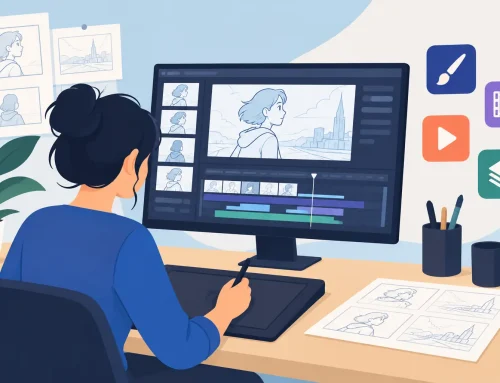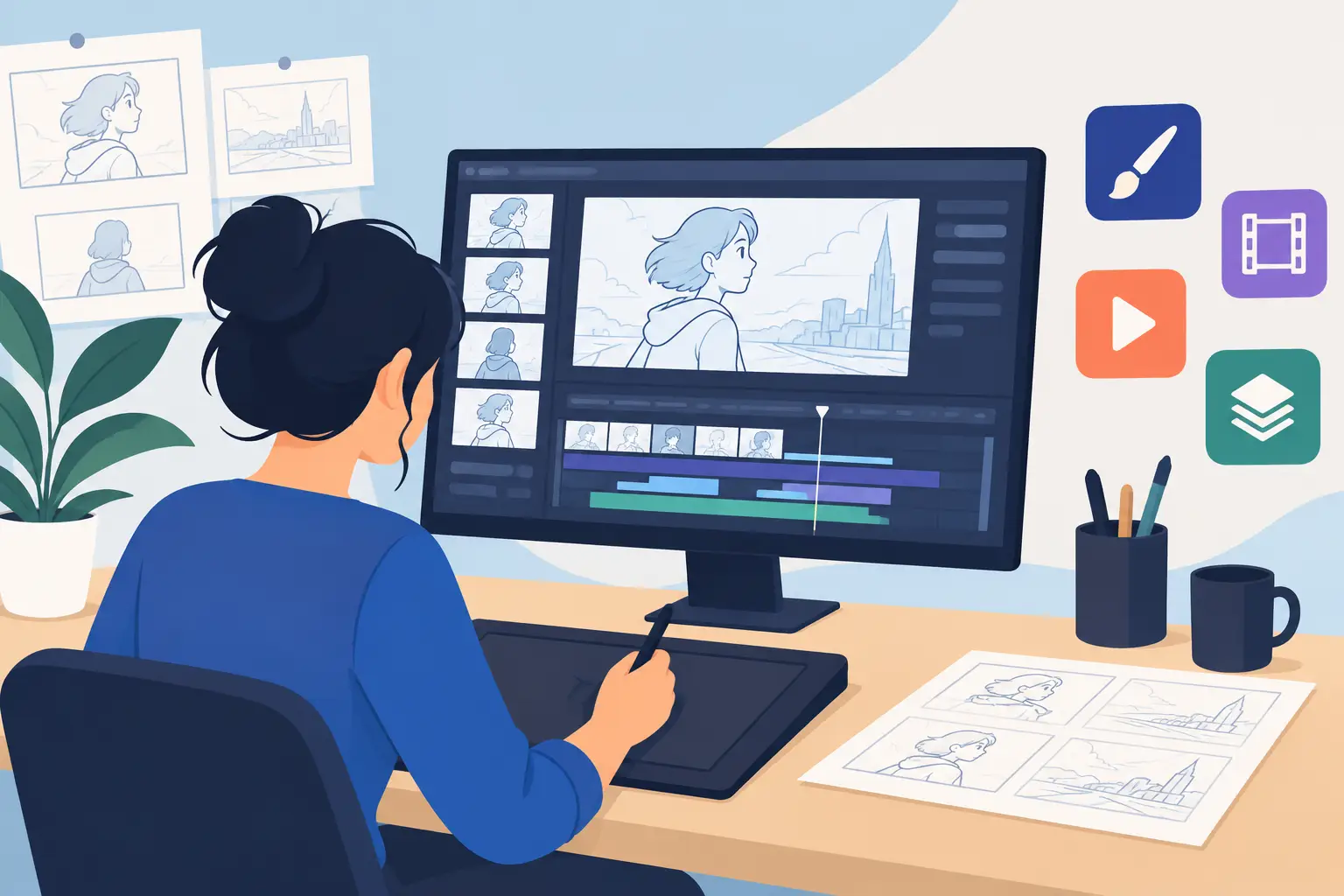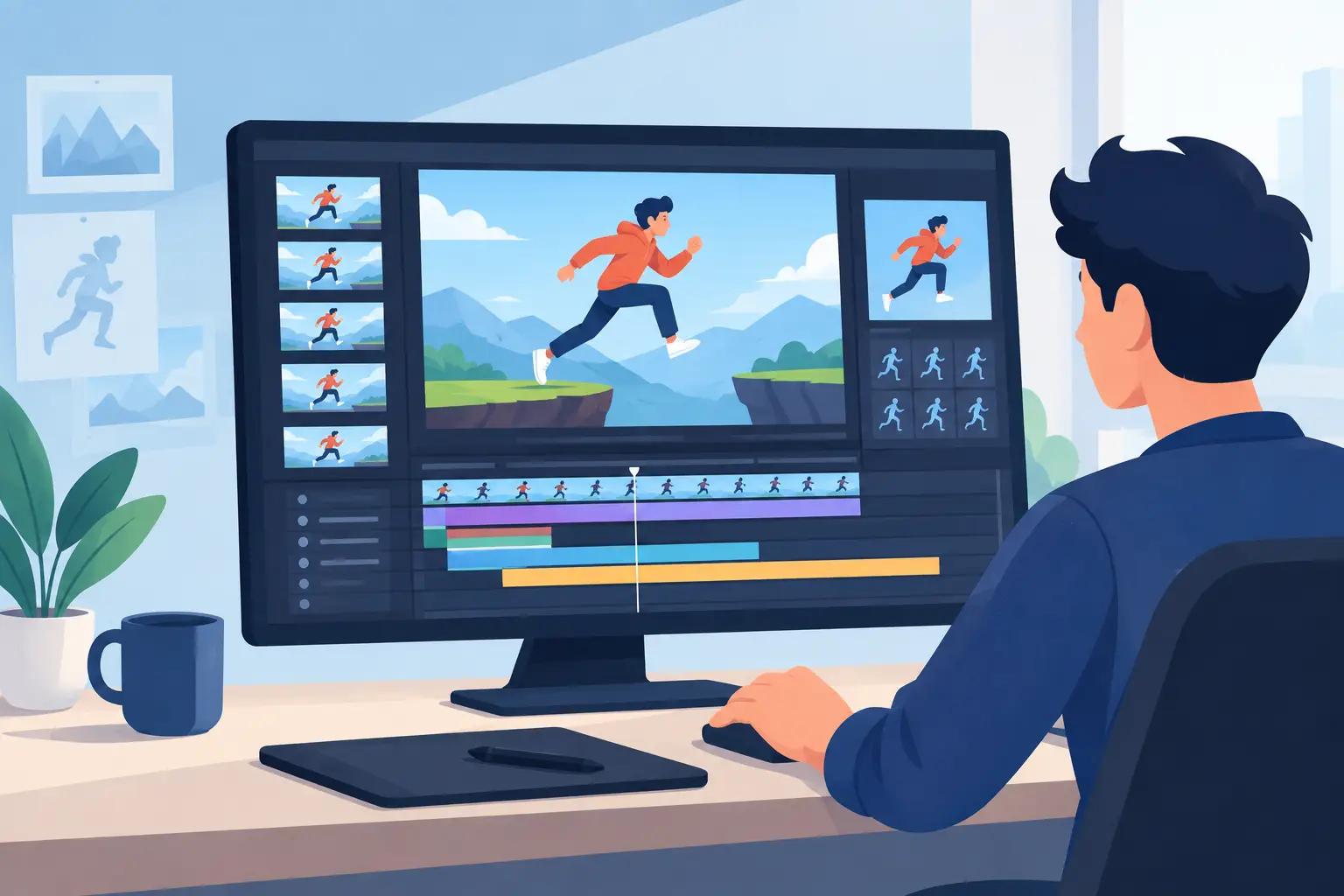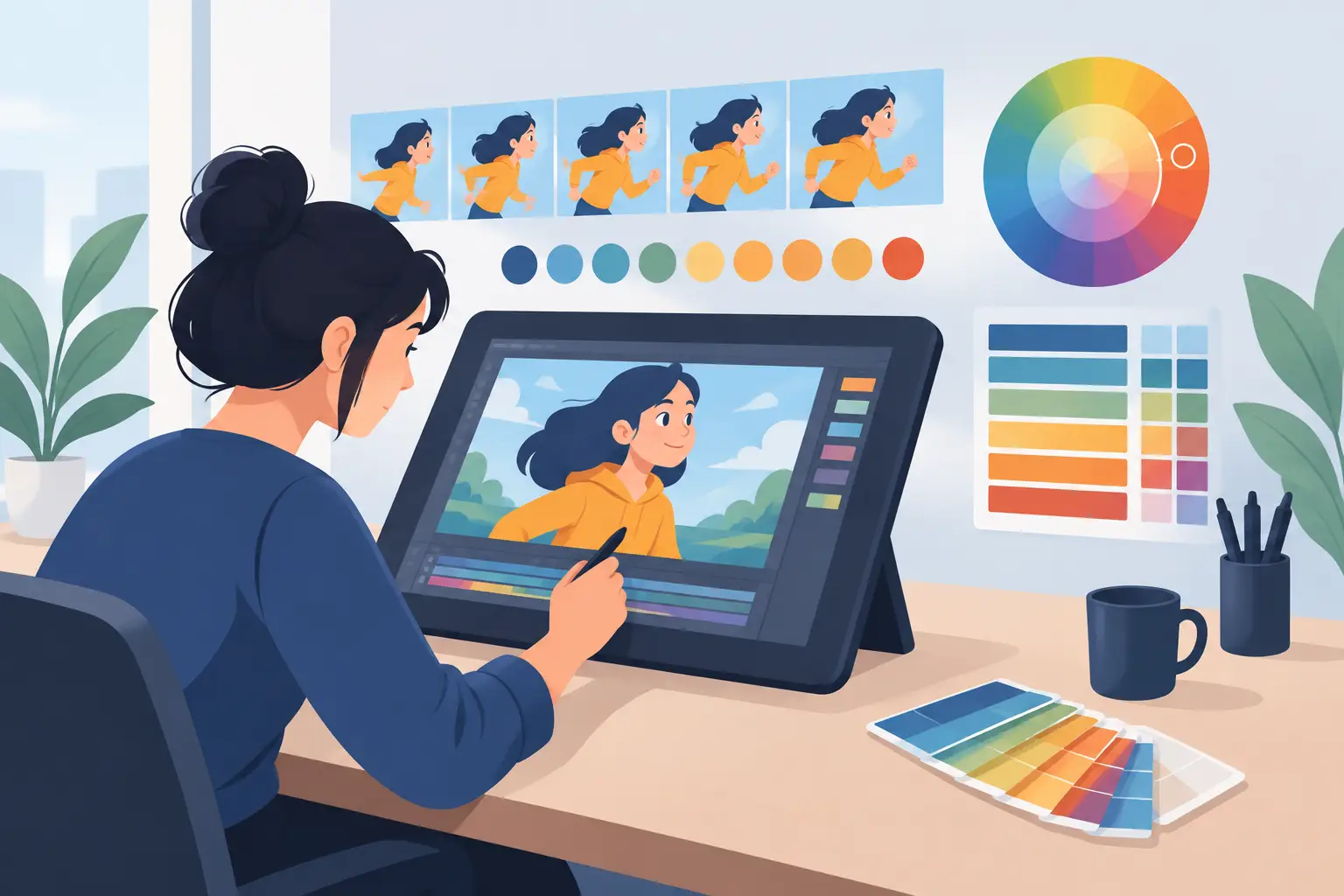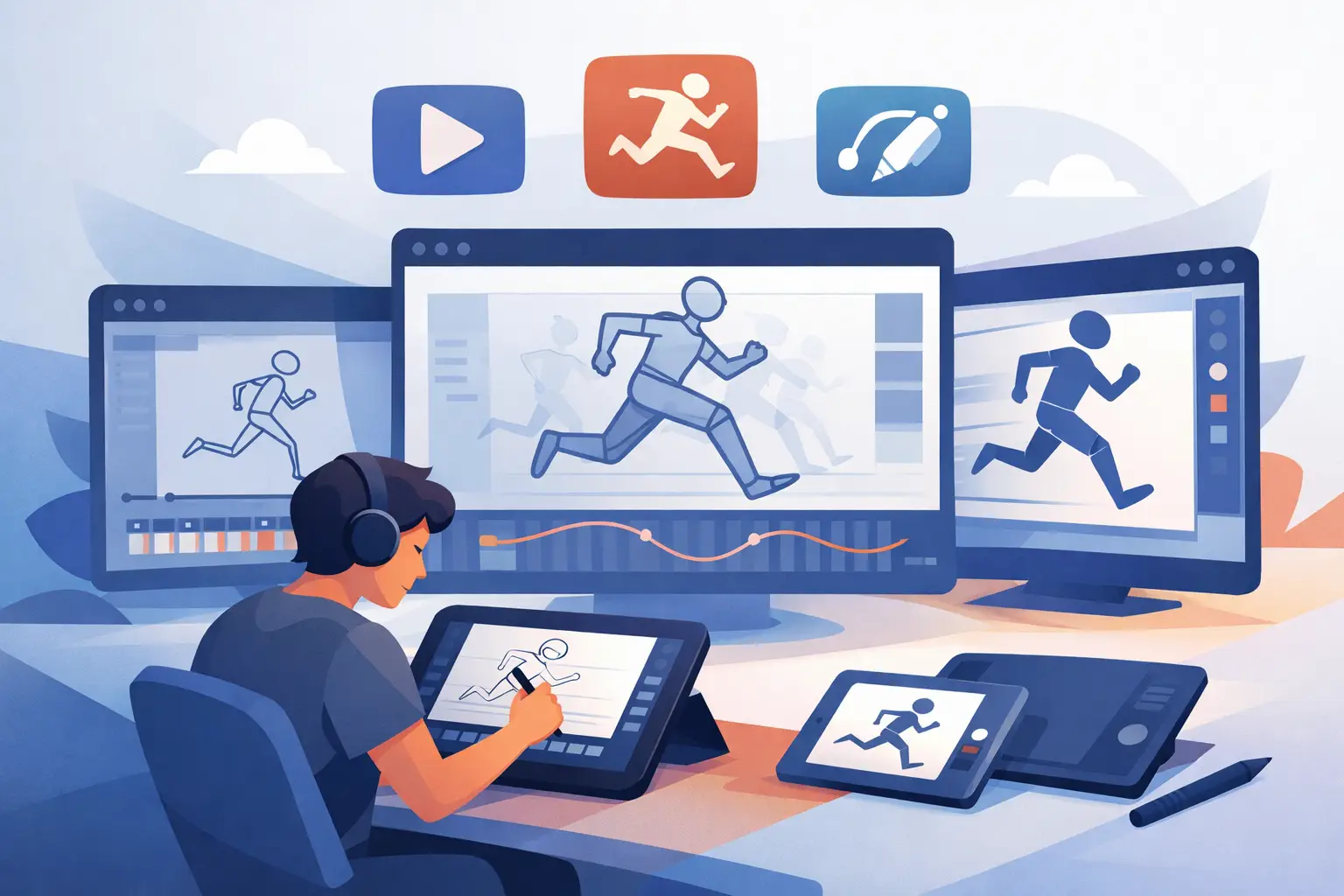
A rough animation app comparison should begin where animation actually begins: with the first loose drawing. If the pencil feels delayed, the timeline hides your poses, or changing a hold means stopping to rebuild timing, the software is working against the shot. For animators learning the craft and professionals pushing through production, the best app is not the one with the longest feature list. It is the one that lets you draw, check motion, adjust timing, and keep moving.
Rough animation is where acting, staging, spacing, and rhythm are solved. You need to see your previous and next drawings clearly, flip or scrub through the scene without friction, and make changes before clean-up and color turn a small decision into a costly fix. That makes the drawing experience, painting workflow, and timing controls far more consequential than flashy effects.
Rough Animation App Comparison: Start With the Drawing
Many animation applications can place drawings on a timeline. That does not mean they all support the way a traditional animator thinks. A roughing tool should feel like paper, peg bars, and a pencil translated to the screen – direct, responsive, and free of unnecessary ceremony.
Look first at how quickly you can make and revise a drawing. Can you put down a loose gesture, erase a line, redraw an arm, and immediately judge the result in motion? Can you work through a scene with clear onion skinning and reliable playback? These are not beginner concerns. They are production concerns. A professional animator may make dozens of small corrections before a single drawing is ready for clean-up.
Vector-first applications can be useful when a project needs infinitely scalable artwork or graphic motion design. Their trade-off is that a rough can become an exercise in managing points, curves, and object selections. Raster painting applications may offer beautiful brushes, but they are often built for illustration rather than exposure sheets, frame-by-frame playback, and scene timing. Full production suites can cover many departments, yet their depth may come with more panels, more setup, and more ways to interrupt a simple pencil test.
For hand-drawn animation, the question is simple: does the app let the animator concentrate on the line and the motion? If the answer is no, its extra tools will not make the rough pass faster.
What natural drawing support looks like
Natural drawing is not only about having a pencil brush. It is about the complete response between hand, screen, and playback. A useful roughing environment keeps drawing tools close, makes layers understandable, and lets you inspect a pose without losing your place in the shot.
It should also support the ordinary habits of classical animation. Animators need to work on ones, twos, or longer holds; compare surrounding drawings; test arcs; and revise keys before committing to in-betweens. Software that treats every frame as an isolated illustration makes this harder. Software that treats drawings as exposures in a performance makes the process clearer.
Students should pay special attention here. A tool that reveals timing and spacing encourages better fundamentals. One that automatically smooths, interpolates, or hides the relationship between drawings can make a scene look finished before the animator has learned why it moves.
Painting Speed Is a Real Production Difference
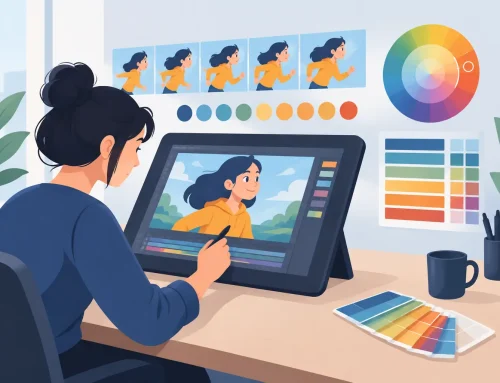
Color often exposes the gap between software designed for animation and software adapted to it. Filling a character across a sequence should be predictable and quick. When an animator must repeatedly trace tiny gaps, hunt through complicated layer structures, or repair fill spills one frame at a time, paint becomes a bottleneck.
A strong 2D animation app makes it easy to paint enclosed areas, correct a color decision, and move from one frame to the next without breaking concentration. This matters for independent filmmakers and small studios, where the same person may rough, clean up, paint, and composite a shot. It also matters in a classroom, where students need to see the payoff of their finished movement instead of spending the entire session fighting fills.
The trade-off is worth understanding. A broad illustration program may provide hundreds of textured brushes and advanced image-editing tools. If your project is a single painted frame, that range can be valuable. If your project is 300 drawings of a character turning toward camera, fast animation-specific painting usually matters more.
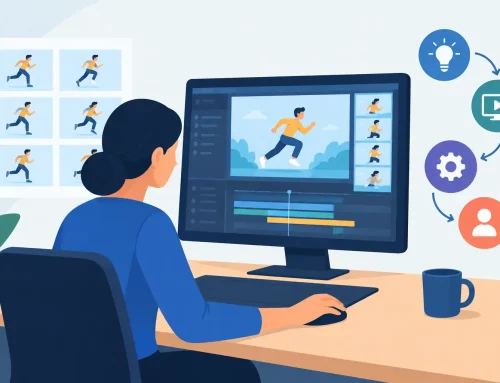
Before choosing an app, test a real task. Draw a rough character with overlapping shapes, clean one frame, paint it, duplicate the workflow across several drawings, then change a color. Notice how many clicks, dialogs, and corrections the job requires. Marketing screenshots rarely reveal that part of the experience.
Timing Control Separates Drawing Software From Animation Software
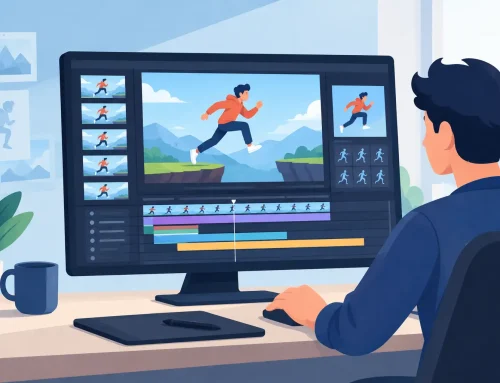
A scene can have good drawings and still feel dead because the timing is wrong. A pause may be too short. An anticipation may need two more frames. A blink may happen one drawing late. Traditional animators solve these decisions by watching the scene repeatedly and changing exposures until the action reads.
This is where many apps force a stop-adjust-preview cycle. You play the shot, stop playback, select a frame or exposure, change its duration, return to the start, and play again. Repeating that process for every adjustment pulls attention away from performance.
The better approach is timing control that stays connected to playback. When you can adjust holds and exposure timing while seeing the scene move, you make decisions by eye rather than by guesswork. That is especially valuable during rough animation, when the right answer may only become apparent after several passes.
FlipBook is built around this traditional working method, including real-time timing edits that let animators refine a scene without constantly stopping to rebuild and preview it. For an animator accustomed to checking a pencil test, that is not a minor convenience. It keeps the timing pass alive and responsive.
Test the timeline with a performance, not a bouncing ball
A bouncing ball is useful for learning spacing, but it is too simple to judge a production workflow. Test software with a short acting shot instead: a character looks offscreen, reacts, takes a breath, then speaks. This kind of scene exposes whether you can hold a drawing, shift the reaction, retime a blink, and preserve the rhythm of the performance.
If the timeline makes those changes obvious and immediate, it supports animation. If it turns every timing choice into a technical operation, it will slow down as scenes become more complex.
Camera Tools Should Serve the Scene
Pan, zoom, rotate, blur, and dissolve effects are useful when they are available at the right moment. A camera move can strengthen staging, guide the audience to a reaction, or give a held drawing more life. But these controls should support the animation rather than require a separate compositing ordeal for a straightforward shot.
For a small production, integrated camera-style effects can eliminate unnecessary handoffs. You can rough the action, establish the movement, and test a simple camera decision in context. For a larger pipeline, the same tools can provide clear previs and a stronger scene plan before final compositing.
Do not choose an app solely because it includes effects. A dozen filters will not compensate for awkward drawing or slow timing. Choose camera controls that are understandable, repeatable, and easy to revise when the scene changes.
Choose for the Work You Actually Make
There is no universal winner because animation projects differ. A motion designer may need vector precision. A concept artist who occasionally animates may prefer a painting-first environment. A studio with specialized departments may accept a complex suite because it fits an established pipeline.
But if your work centers on hand-drawn roughs, clean-up, frame painting, and the judgment of motion, favor an application that makes those jobs direct. Evaluate it with your own shot, your own tablet, and your own timing problems. A free trial and responsive technical support are not extras in that process – they give you a chance to find out whether the software respects the way you work.
The right tool should disappear after a few minutes, leaving you with the useful questions: Is the pose clear? Does the action have weight? Does the hold last long enough? Put a real scene on the timeline, make those changes, and let the workflow show you what belongs on your desk.