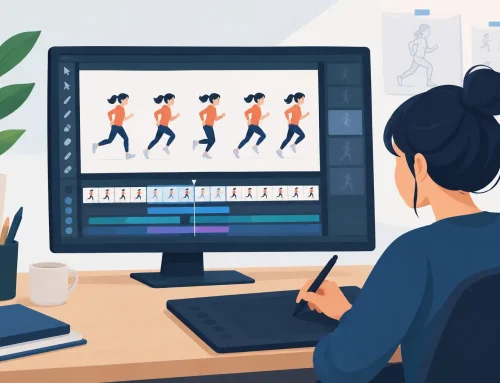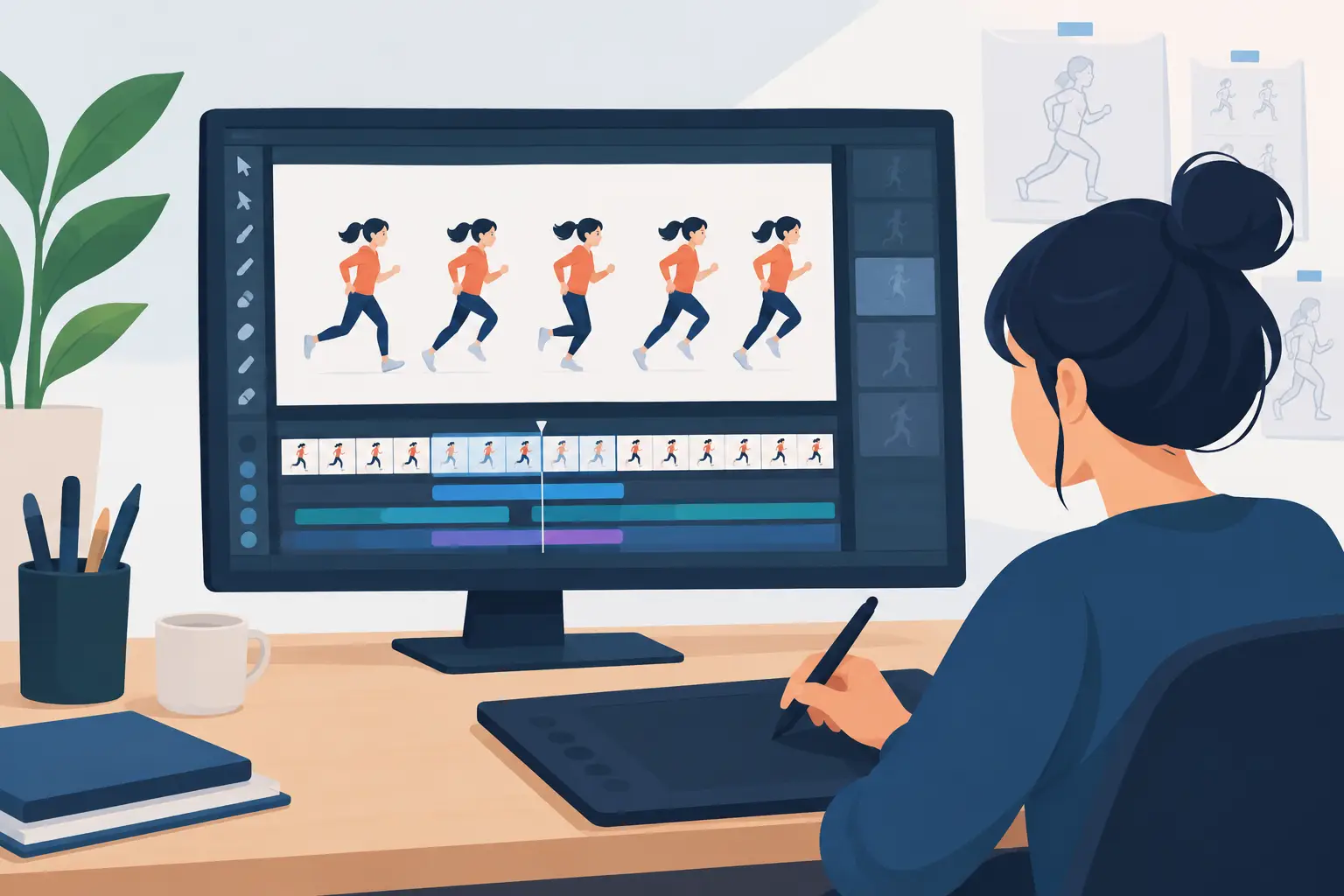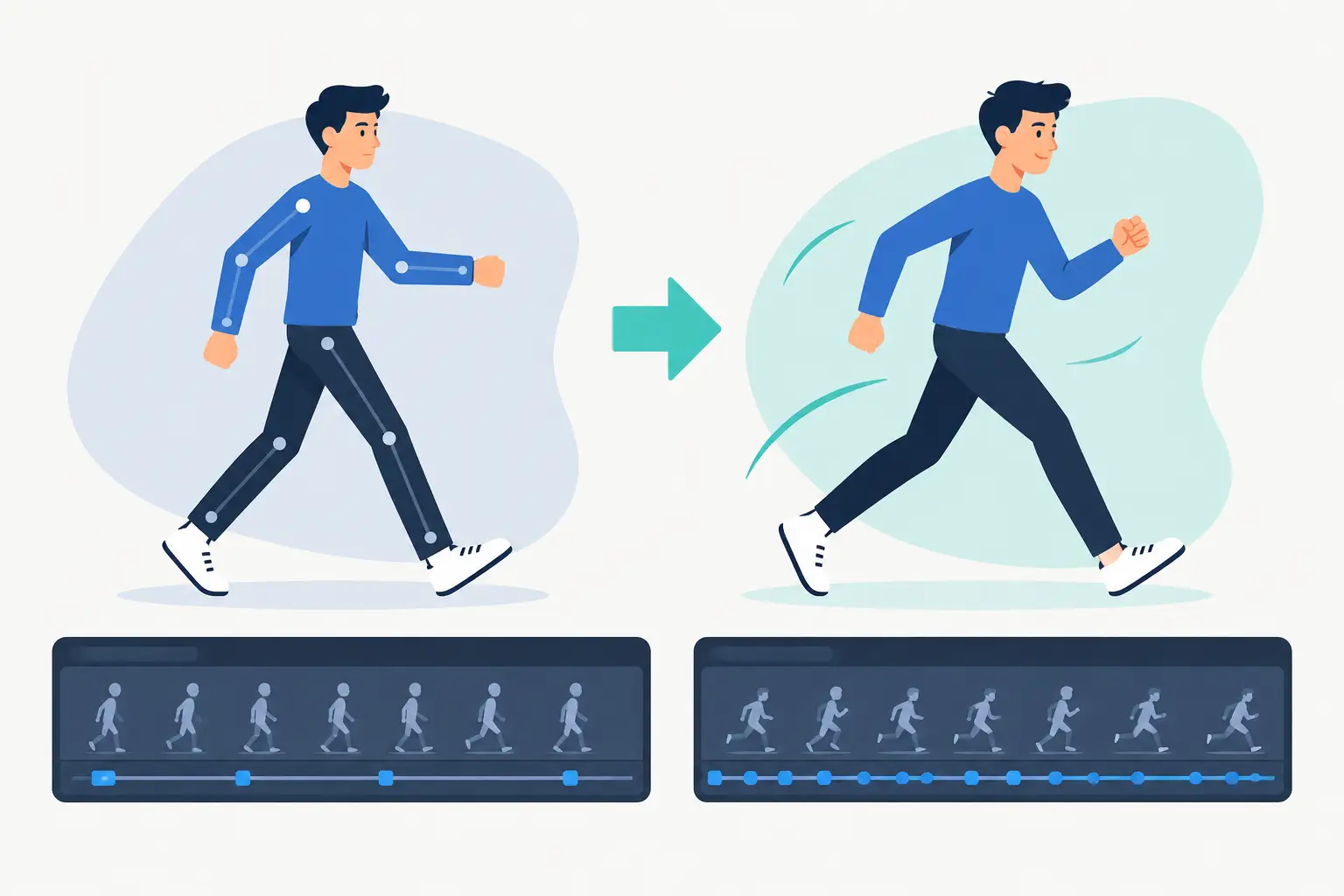
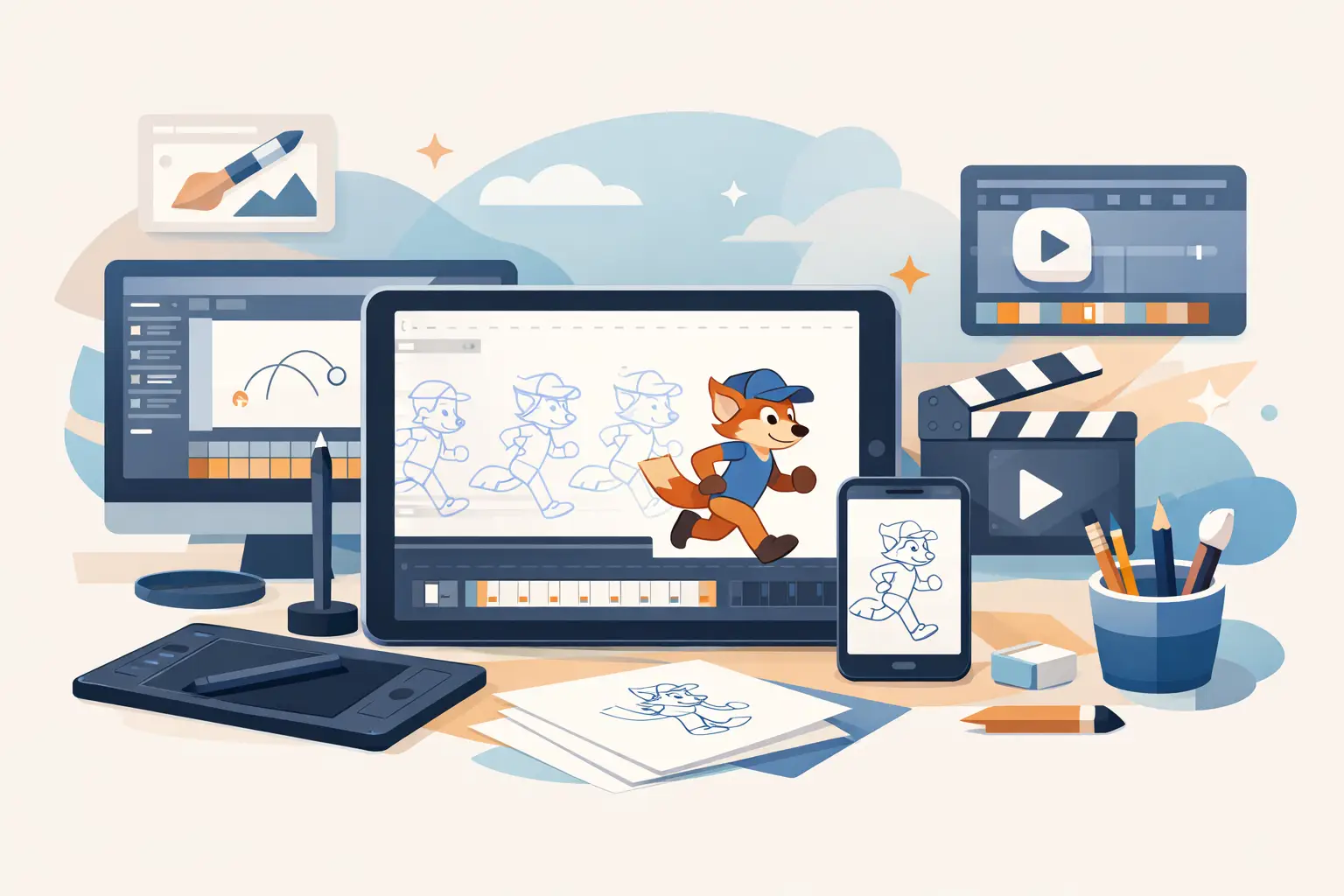
A drawn scene can look finished on every frame and still feel lifeless when the timing is wrong. That is why the top apps for drawn animation should be judged by more than brush presets or a long feature list. The real test is whether the software lets you rough, clean up, paint, flip through poses, and change exposure without breaking your concentration.
For animators who want the discipline and freedom of classical 2D production, the best application is the one that keeps the drawing at the center of the process. Some tools are built for large studio pipelines. Others are excellent sketching programs with animation added on. A few are purpose-built for frame-by-frame work. Knowing the difference saves time, money, and a great deal of frustration.
What Makes an App Good for Drawn Animation?
A capable drawing program is not automatically a capable animation program. Drawn animation demands control over sequence, not just a good-looking line. You need to see neighboring drawings clearly, work with layers for roughs and clean-up, play a scene at the correct frame rate, and make timing decisions while you watch the action.
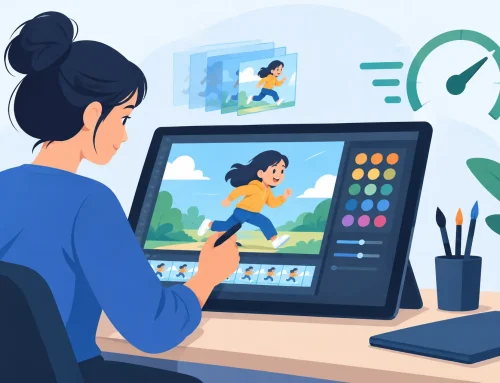
The most useful apps also make color work practical. Painting hundreds of frames one at a time is not a badge of honor when a production tool can fill enclosed areas efficiently, preserve line work, and help you correct a color across a scene. The goal is not to remove craft from the process. It is to remove repetitive labor that does not improve the animation.
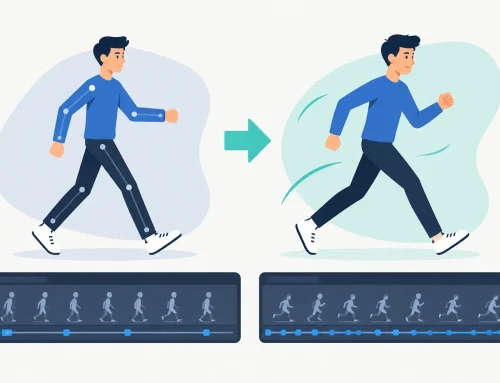
Timing is the other dividing line. In traditional animation, a held drawing, a fast insert, or a two-frame adjustment can change the entire idea of a performance. If an app makes you stop playback, alter an exposure, then restart from the beginning to judge the change, it interrupts the animator’s most valuable feedback loop. A stronger workflow lets you evaluate timing in motion and make adjustments immediately.
Top Apps for Drawn Animation Compared by Workflow
There is no single winner for every animator. A student making pencil tests, a freelance filmmaker producing a short, and a studio delivering a series have different needs. Still, the major choices tend to fall into clear categories.
FlipBook for traditional frame-by-frame production
FlipBook is built around the working methods of hand-drawn animation: rough animation, clean-up, painting, playback, and scene-level finishing. Its appeal is direct. You draw on frames, use onion skinning to judge movement, and keep the production moving without being forced into a complicated node system or a rigid compositing-first workflow.
Its practical advantage is the way it supports timing changes during playback. Animators can adjust exposure while seeing the scene run, rather than repeatedly stopping to edit and preview. That matters when refining a take, because timing and spacing are judged with the eye, not from a spreadsheet of frame numbers.
The painting tools are another major consideration for anyone handling a large number of cels. Fast, reliable fills reduce cleanup time without changing the character of the line. Camera-style effects such as pan, zoom, rotate, blur, and dissolve also cover many of the needs of an independent production without turning a simple scene into a technical project. It is especially well suited to artists who want digital speed while retaining a studio-style drawing process.
TVPaint for painters and experienced digital animators
TVPaint is respected for its raster drawing experience and its depth as a professional animation package. Artists who like expressive, textured brushes often find it appealing, particularly for hand-painted work, effects animation, and projects where the line should feel less mechanically clean.
The trade-off is complexity and cost. Its range of tools rewards people who have time to learn a deep interface and build a workflow around it. For a skilled animator with a painterly style, that can be worthwhile. For a beginner trying to understand spacing, arcs, and basic scene construction, the number of choices can get in the way of the lesson.
Toon Boom Harmony for pipeline-heavy productions
Harmony is a serious production tool with broad capabilities for both hand-drawn and rigged animation. Studios often consider it when they need asset organization, compositing options, collaboration, and a pipeline that can support many shots and artists.
That breadth is also its compromise. Harmony can be more software than a solo animator needs when the job is simply to make a sequence of drawings move well. Its rigging and compositing strengths are valuable for television-style production, but they do not inherently make the drawing experience more natural. Choose it when pipeline demands are central, not simply because it is widely used.
Clip Studio Paint EX for artists who also make comics
Clip Studio Paint EX gives illustrators and comic artists an accessible path into frame-by-frame animation. Its drawing tools are familiar to many artists, and its timeline features can handle tests, short loops, social clips, and compact animated projects.
It is a sensible choice when illustration is your primary job and animation is part of your practice. For longer productions, however, its animation workflow can feel less specialized than an application designed from the ground up around scenes, exposures, and traditional cleanup. The question is not whether it can animate. It can. The question is how much production friction you are willing to accept as shots become longer and more numerous.
Adobe Animate for vector-based work and web delivery
Adobe Animate remains useful for vector animation, interactive content, and teams already working in Adobe-centered environments. Vector assets scale cleanly, and reusable symbols can be efficient for certain graphic styles.
Its limitations show up when your process depends on the texture and decision-making of drawn frames. Vector line work can feel controlled in a way that some hand-drawn animators do not want, and a symbol-based workflow can encourage reusing parts before the performance has been properly animated. It fits clean graphic work well. It is less compelling for artists who want every pose to be drawn with intent.
OpenToonz and Krita for budget-conscious learners
OpenToonz and Krita are frequently considered by learners because they are accessible without a major upfront purchase. Krita offers an enjoyable drawing environment and basic animation tools for tests and short projects. OpenToonz has production-oriented capabilities and a history connected to professional 2D workflows.
Both can teach useful fundamentals. Yet free software is not always the least expensive option if an awkward interface slows down your learning or requires constant workarounds. A beginner needs enough tools to practice animation principles, but also a workflow clear enough that the software does not become the main obstacle.
Choose Based on the Work You Actually Need to Do
Start with the kind of scene you will animate next month, not the kind of production you might run someday. If you are learning, prioritize clear drawing tools, onion skinning, playback, and exposure control. You need to make lots of drawings and see what they do. A complicated compositing system can wait.
If you are producing a short film or client work, look closely at cleanup and painting speed. A ten-second shot at 24 frames per second becomes a substantial amount of labor once roughs, clean-up drawings, and color are involved. Tools that shorten repetitive frame work leave more time for acting, staging, and correction.
Small studios should weigh collaboration against creative speed. A giant pipeline may be justified for a large team with formal handoffs. But a small group often benefits more from an app that lets each animator move quickly from rough scene to painted shot. The best setup is the one that protects production deadlines without flattening the work into generic motion.
Test Timing Before You Commit
Most animation apps can produce a bouncing ball. Use a trial period to test something more revealing: a character turning, a hand reaching for an object, or a short dialogue take. These scenes expose whether you can draw comfortably, read your roughs, manage layers, paint efficiently, and correct timing without losing momentum.
Pay particular attention to what happens after the first pass. Your first timing choice will rarely be the best one. Can you hold a drawing longer, remove a frame, or shift an accent while the scene plays? Can you find a bad spacing decision quickly? Does painting feel like finishing the shot, or like starting another tedious job?
The right application should make you want to animate another pass. Choose the tool that keeps your attention on the performance, gives your drawings room to breathe, and lets you solve problems while the scene is still alive on screen.