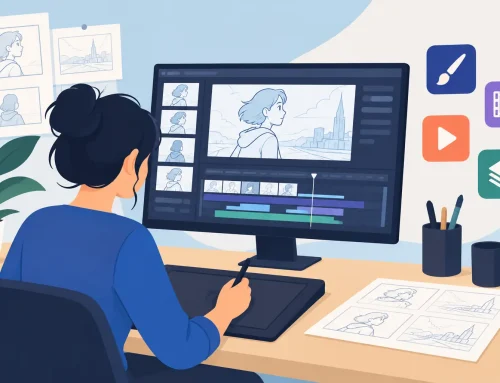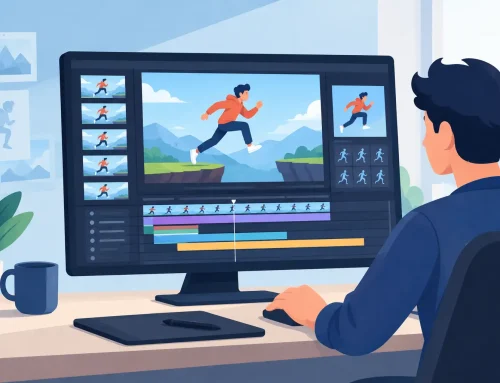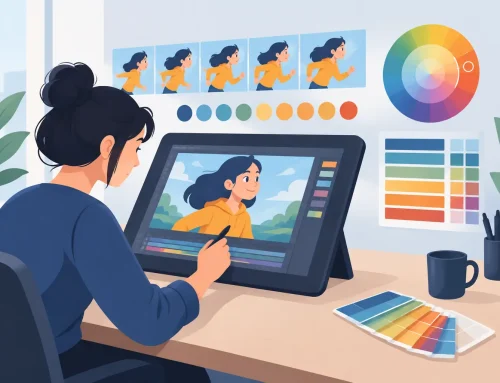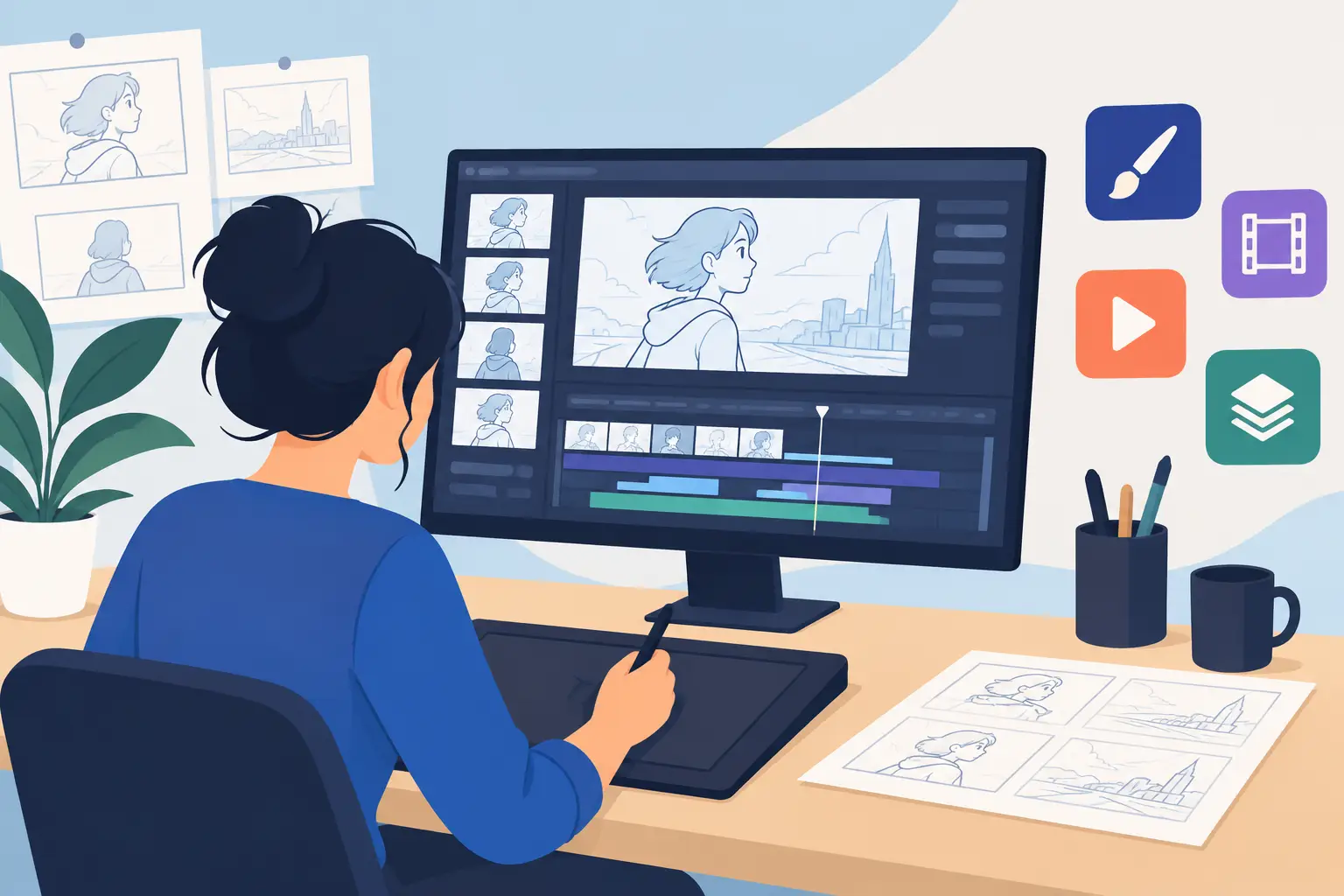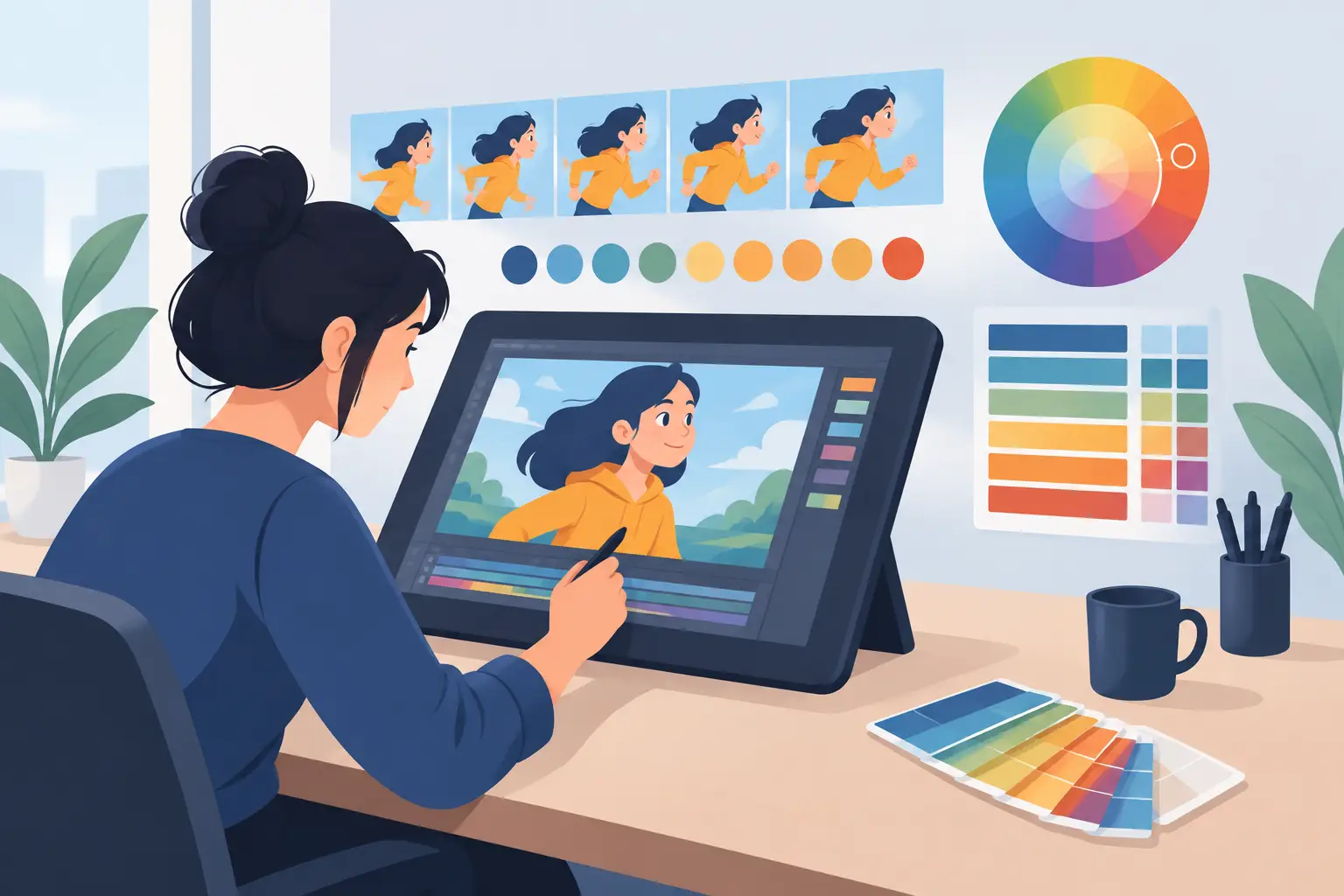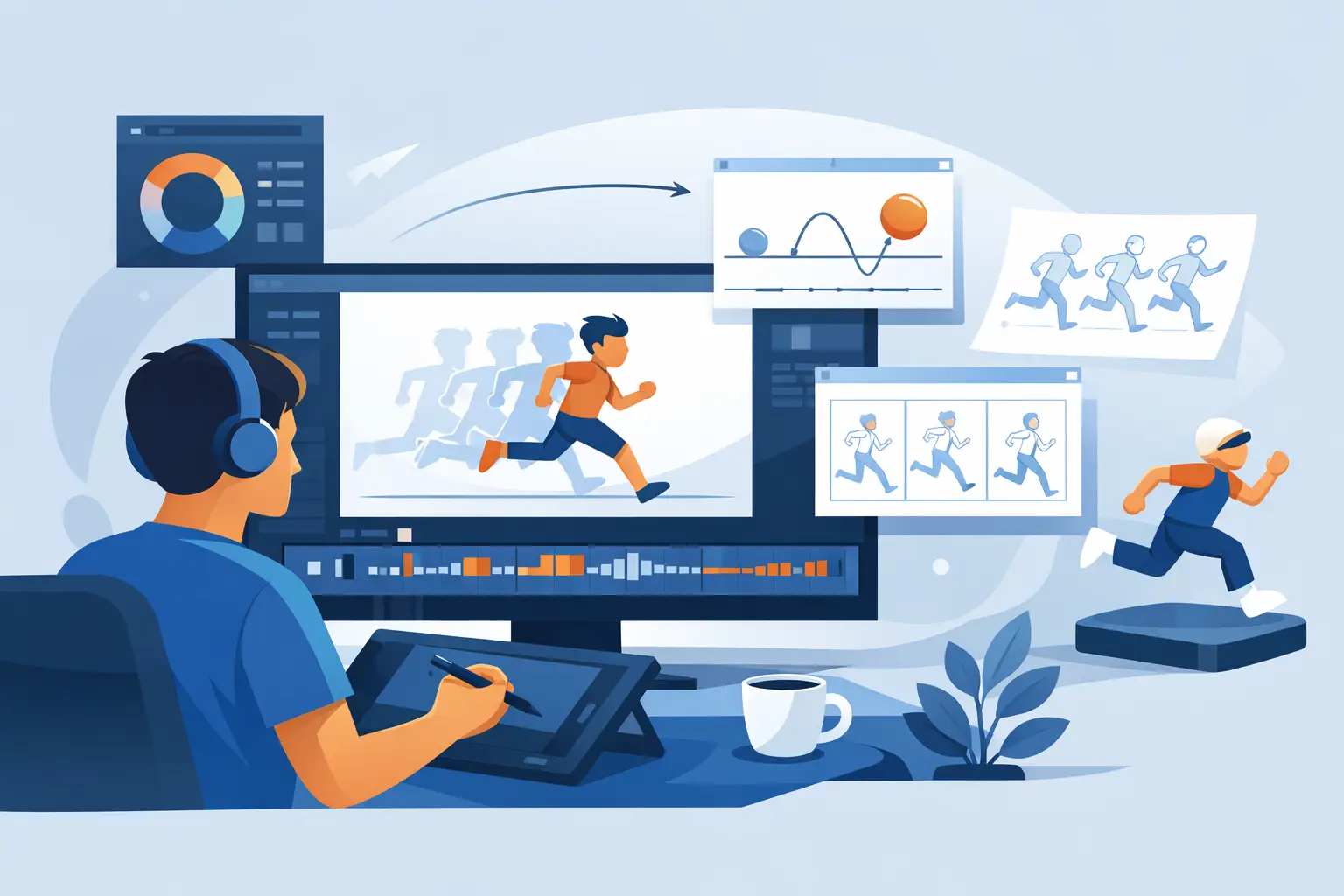
A scene can look fine as a stack of drawings and still fail the moment it plays. The pose may be right, the line may be clean, and the color may be perfect, but timing exposes everything. That is why drawing software for animators should be judged by more than its brush list or file compatibility. It has to support the actual work of animation: drawing, checking motion, changing exposure, painting frames, and doing it again without losing the thought behind the shot.
For artists trained on paper, the best digital tools do not replace the process with layers of technical ceremony. They keep the familiar rhythm of rough animation, clean-up, and paint while removing the slow parts of handling physical drawings. For students, that means more time learning spacing and arcs. For working animators and small studios, it means fewer interruptions between an idea and a playable scene.
What Drawing Software for Animators Must Do
A general drawing app can make attractive illustrations. Animation software has a harder job. It must let you create drawings in sequence, understand their relationship over time, and make decisions at playback speed. If the program treats every frame as an isolated image, the animator ends up doing the software’s organizational work instead of animating.
Start with the drawing feel. A pen should respond predictably to pressure and speed, with lines that remain under your control. This matters most in rough work, where you may draw quickly to find a pose, then redraw it several times before the action settles. Excessive smoothing can make a line look polished while stripping away the energy and intent needed to judge a performance. Too little control can make clean-up tedious. The right balance depends on the artist, but the program should not force every drawing into the same sterile finish.
Next, look at how the software handles frames. Traditional 2D animation is built on exposure. A drawing may hold for two frames, change on ones for a fast action, or be reused while another element moves underneath it. Good software makes those choices visible and easy to change. You should be able to see the sequence, select a drawing, hold it, duplicate it, or replace it without digging through a complicated timeline.
Onion skinning also deserves more than a checkbox. You need to see enough of the surrounding drawings to judge the path of action and spacing, without turning the screen into a fog of colored ghosts. Controls for the number, color, and opacity of visible frames are practical production tools, not decoration.
The Test Most Apps Fail: Timing Changes
Timing is where animation becomes performance. A blink held one frame too long can make a character look distracted. A takeoff that is two frames too short can lose its weight. A reaction that arrives late can flatten a joke. These are not errors you reliably catch while looking at still drawings.
Many programs make timing adjustment a stop-and-start process. Stop playback, change an exposure, return to the beginning, play again, and hope the change worked. That workflow breaks concentration, especially when you are tuning a scene one frame at a time. It also makes animators reluctant to test alternatives, even when the scene clearly needs another pass.
Look for drawing software that lets you adjust timing while the scene plays. Real-time timing control keeps your attention on the movement rather than on timeline mechanics. You can feel whether an action needs to breathe, whether a hold is too long, or whether an accent needs to land earlier. This is closer to how an animator thinks: watch the shot, make the correction, and immediately judge the result.
That difference is especially useful when working with dialogue. Mouth shapes, head turns, blinks, and hand gestures rarely fall into place on the first pass. A system that makes exposure changes fast encourages the kind of small, careful timing decisions that make a character feel alive.
Fast Painting Is Part of the Production Schedule
Painting is often underestimated when people compare animation programs. A single illustration may tolerate a slow fill tool. A scene with dozens or hundreds of drawings does not. Every extra click is multiplied by the frame count.
An efficient paint workflow should let you fill enclosed areas quickly, manage color consistently, and correct small gaps without rebuilding the drawing. It should also make it easy to paint rough tests when you only need enough color to read the action. The goal is not to make every early pass presentation-ready. The goal is to get the information you need from the scene, then spend finish time where it matters.
There is a trade-off here. Highly automated paint systems can be useful for certain pipelines, but they may require more setup, stricter line standards, or a workflow built around technical assets rather than hand-drawn scenes. If your work depends on expressive, changing linework, choose tools that help you paint the drawings you actually make, not the drawings the software wishes you made.
Choose a Workflow That Respects Roughs and Clean-Up
Rough animation is thinking on screen. The lines are exploratory because the performance is still being discovered. A good animation program supports that phase with clear layers or levels, easy frame navigation, and quick playback. You should be able to sketch a key pose, flip through neighboring drawings, make an in-between, and test the motion before committing to clean lines.
Clean-up has different needs. Once the motion works, the artist needs dependable line control, a clear view of the rough beneath, and an organized way to separate finished drawing from reference material. The software should make that handoff natural. If moving from roughs to clean-up requires exporting, rebuilding a scene, or constantly managing files, the tool is adding production friction where there should be none.
Camera-style controls are also valuable when they serve the shot rather than distract from it. Pan, zoom, rotate, blur, and dissolve effects can help you stage a scene, create a simple move, or test a transition without leaving the animation environment. They are not a substitute for strong drawings and timing. They are finishing tools that should remain within reach when the production calls for them.
Avoid Buying for Features You Will Never Animate With
Feature comparisons can be misleading because every program advertises a long list. The better question is what happens during an ordinary hour of work. Can you draw without fighting the brush? Can you quickly find the frame that needs correction? Can you play a section repeatedly, alter timing, and see the result immediately? Can you paint a scene without turning a simple task into a technical project?
A huge effects library may be valuable for a motion-graphics job. Advanced compositing may matter in a large studio pipeline. 3D tools may help if your production is built around 3D reference. But for a hand-drawn animator, those features do not compensate for awkward drawing, slow frame handling, or a timeline that interrupts every timing decision.
This is also why free trials matter. Spend the trial on a real test, not a single polished drawing. Animate a short head turn, a walk, or a simple acting beat. Rough it out, clean up a few frames, add flat color, change timing during playback, and export a test. The software will reveal its strengths quickly when it has to carry a complete piece of animation.
A Practical Choice for Traditional 2D Work
DigiCel FlipBook is built around the working methods of classical hand-drawn animation: draw the scene, play it, adjust the timing, paint the frames, and keep moving. Its real-time timing edits are particularly useful for artists who want to correct a performance while watching it, rather than repeating a stop-adjust-preview cycle. That focus makes sense for students building sound habits and professionals who do not want a complex interface standing between their drawings and the shot.
The best software choice depends on your production. A large team may need particular pipeline requirements. A hobbyist may prioritize a lower entry cost. An animator working primarily on an iPad may need a companion workflow that fits how they sketch and review scenes. But the central test stays the same: does the program make it easier to animate well?
Start with a short scene you care about. Make the drawings move, listen for the timing, and notice where the software slows you down. The tool worth keeping is the one that leaves more of your attention for the next drawing.