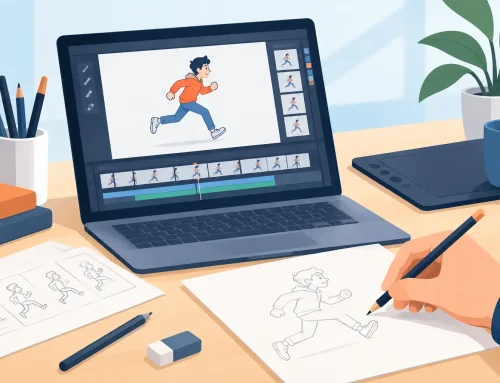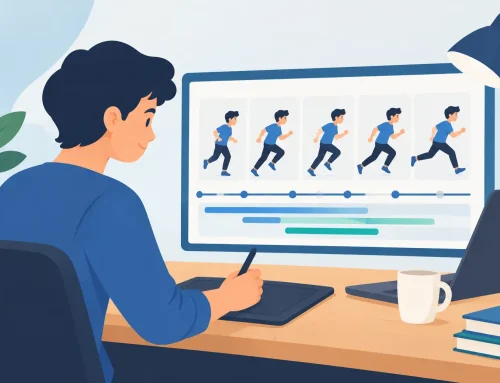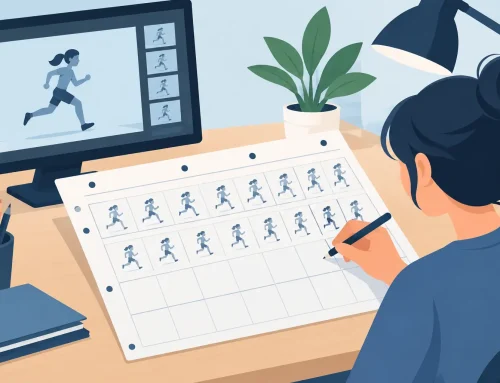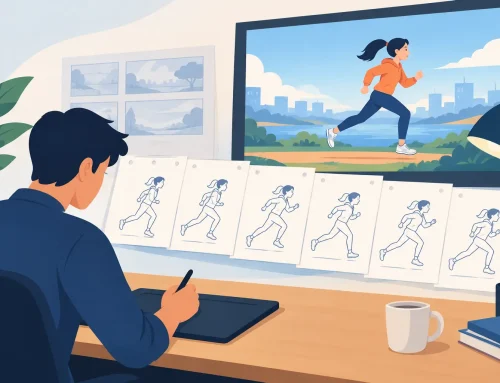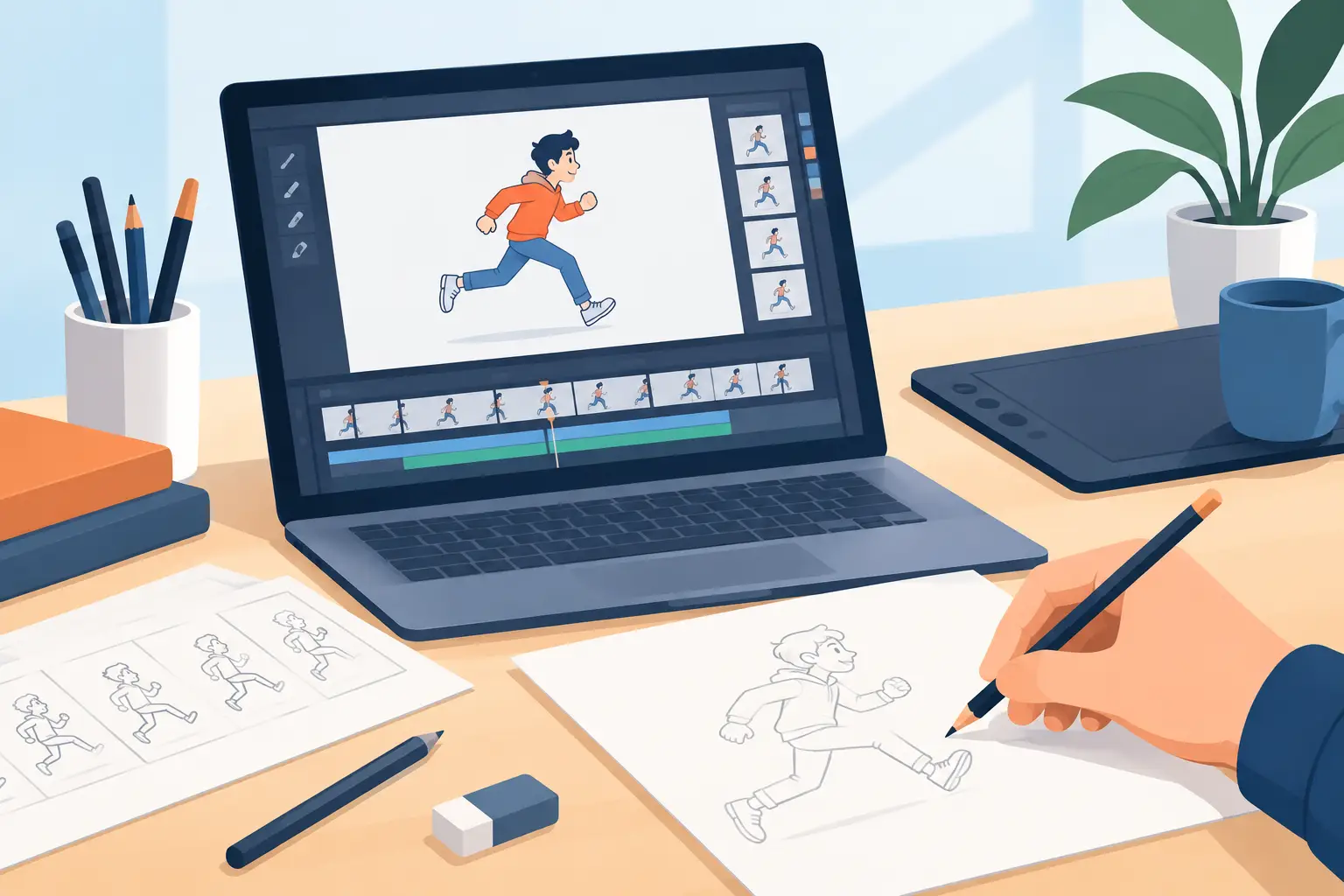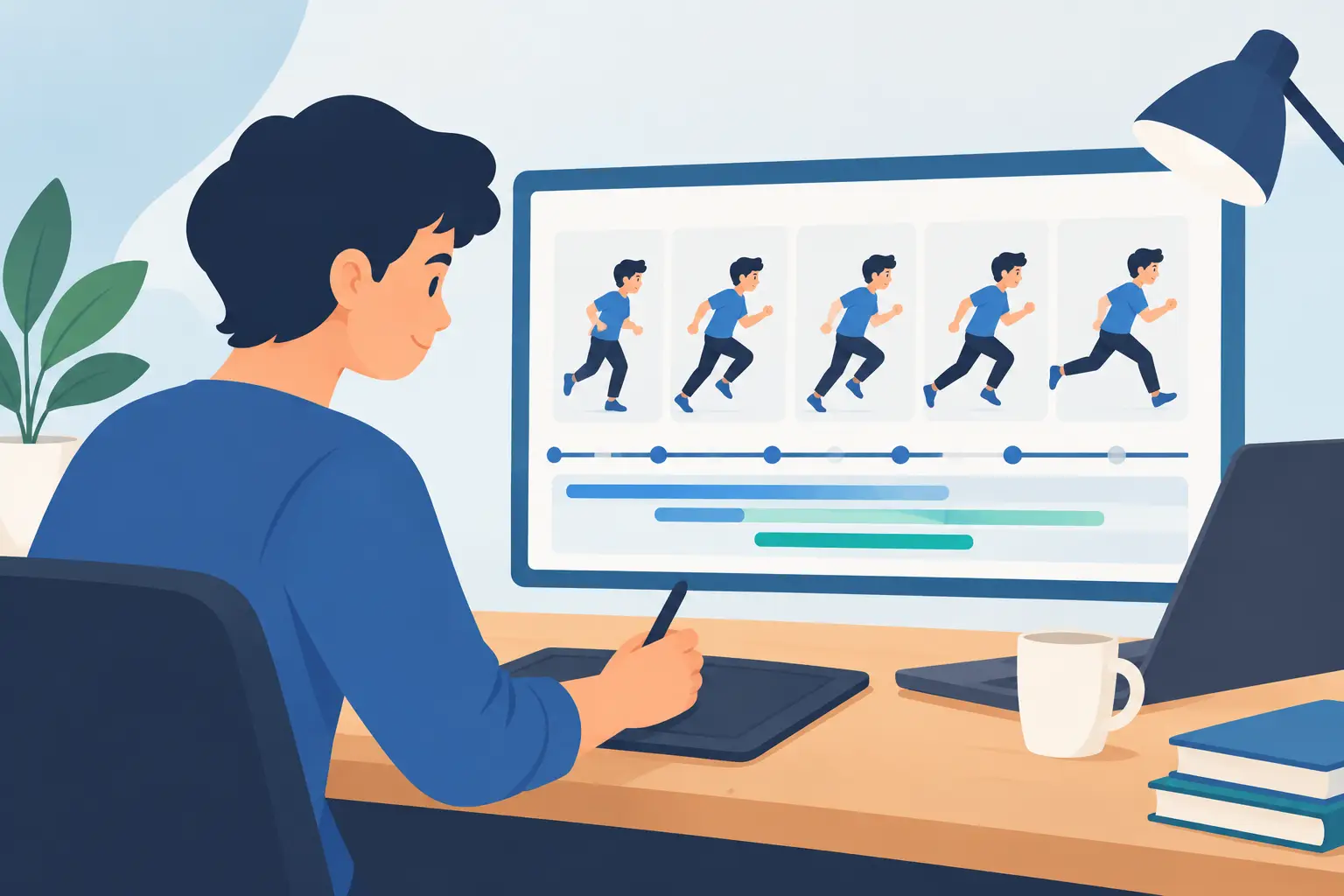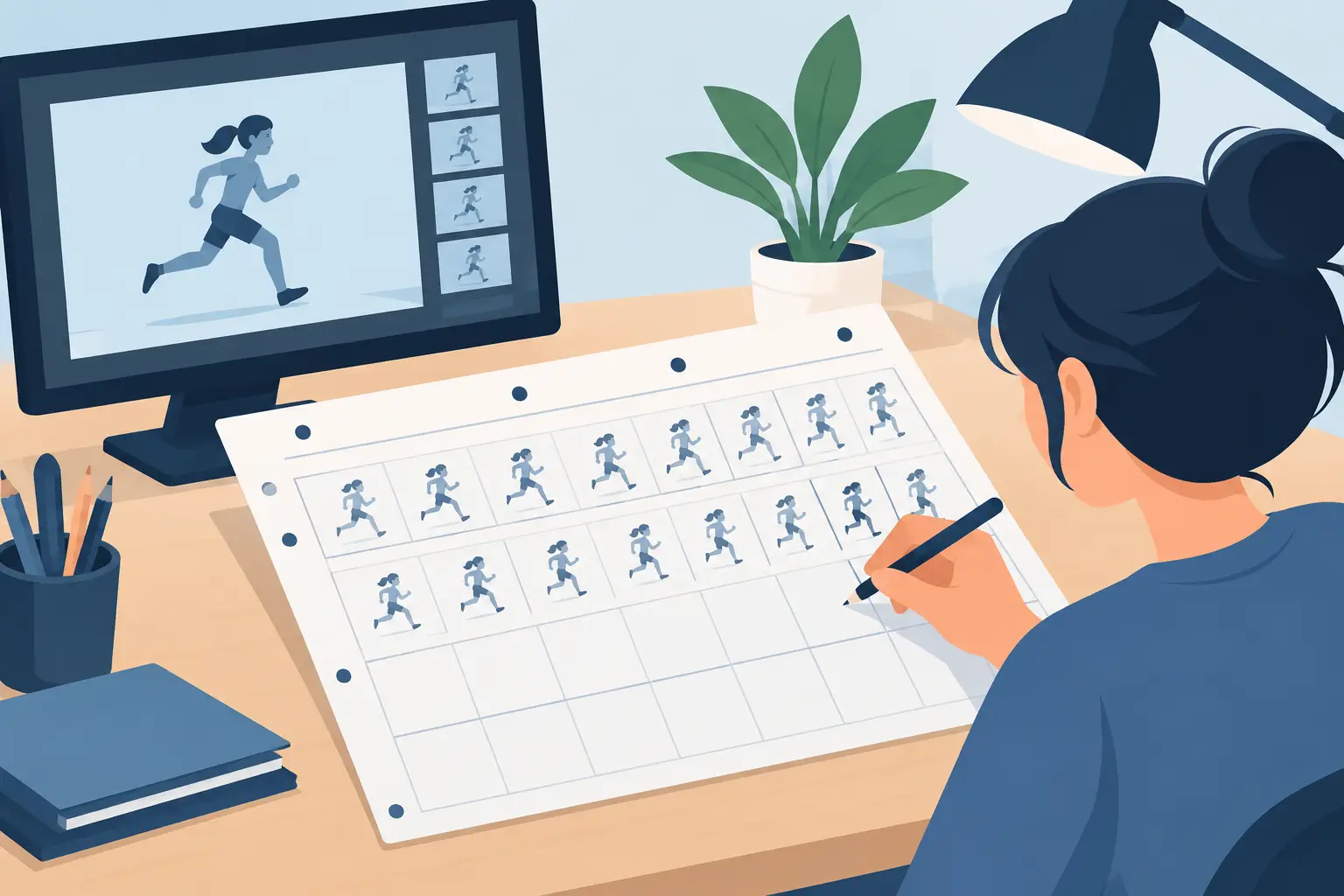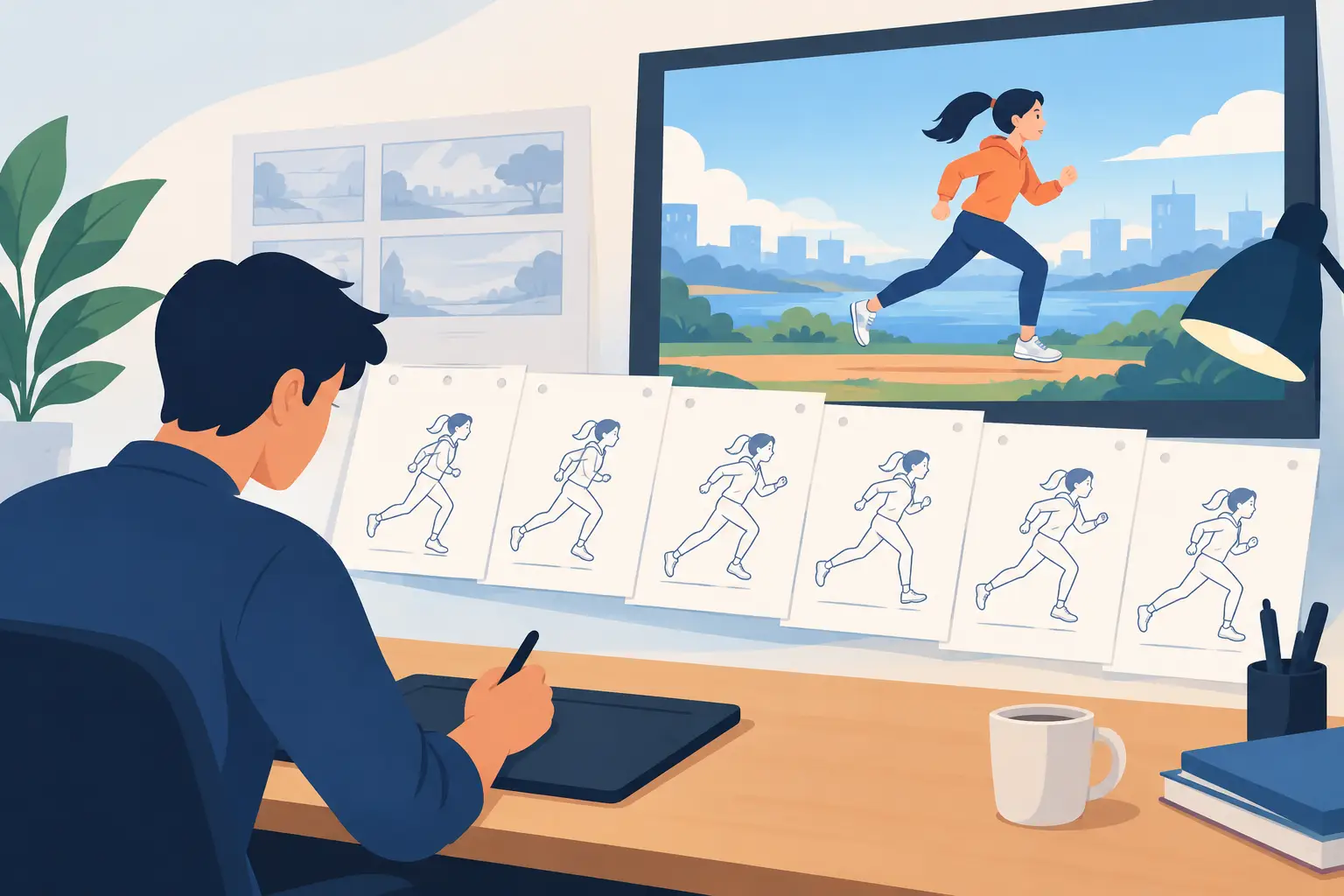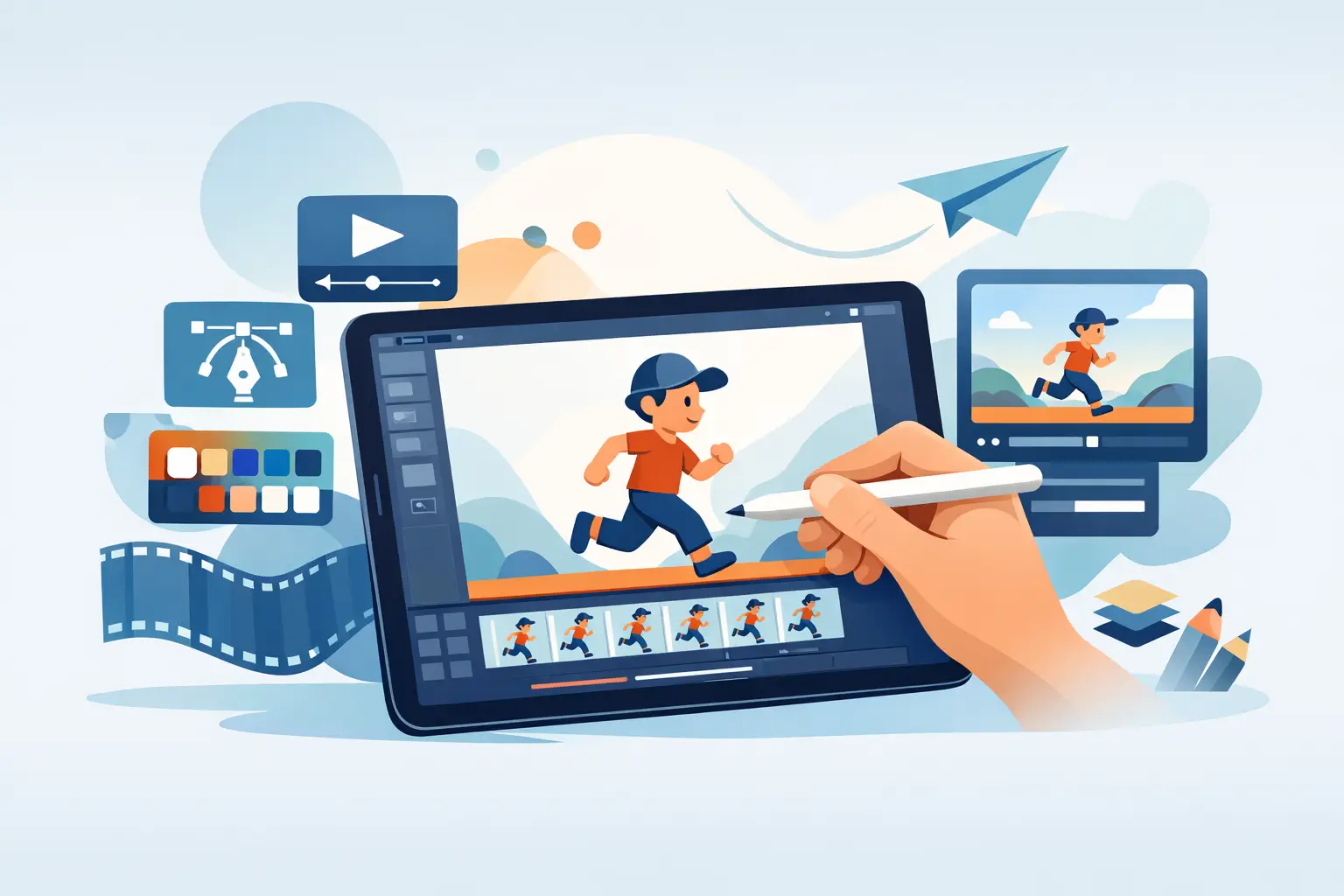
A good iPad app for 2D animation should let you think about poses, timing, and performance instead of making you wrestle with the software. That is the real test. If drawing a rough feels awkward, painting a sequence takes too long, or changing a hold means stopping everything to edit and preview again, the app is getting in the way of the animation.
The iPad is a serious drawing tool, especially with an Apple Pencil. But a smooth drawing surface alone does not make an animation program. Traditional animation is built frame by frame. You need to draw, flip, play, adjust spacing, test the scene, and make corrections quickly enough that the performance stays alive.
What an iPad App for 2D Animation Must Do Well
Many iPad art apps can create a beautiful single illustration. That is different from supporting a production animation workflow. An animator needs to see how one drawing relates to the drawings before and after it. They need to judge arcs, weight, spacing, and the rhythm of an action while it is moving.
Start with the drawing experience. A useful animation app should feel responsive under the Pencil and keep the tools close to the work. Rough animation demands speed. You should be able to sketch a key pose, move to the next frame, and keep going without navigating a maze of panels or converting every stroke into something overly polished.
The next requirement is frame control. Layers matter, but animation layers need a clear purpose: roughs, clean-up, color, effects, and backgrounds. You should be able to work through a scene in the same practical order used in hand-drawn production. Draw the action first. Refine the line. Paint the characters. Then add the camera treatment and compositing touches that support the shot.
Playback is equally important. A scene can look correct when viewed as individual drawings and still fail when it moves. The app must make it easy to scrub through frames, play a section repeatedly, and see what the audience will actually see.
Natural Drawing Is Not a Small Feature
Animation students often choose an app based on its brush library or the number of special effects it advertises. Those features can be useful, but they do not solve the central problem: can you draw naturally enough to animate for hours?
Traditional animators rely on clear, simple marks. A rough needs to communicate an idea fast. A clean-up drawing needs controlled lines. If the Pencil response is delayed, the stroke stabilizer fights every gesture, or the interface hides basic tools behind menus, the artist starts adapting to the app rather than concentrating on the scene.
Look for a workspace that treats drawing as the main event. The best tools do not force a rigid vector workflow on artists who want the direct feel of pencil animation. They give you a practical way to rough, clean up, erase, redraw, and compare drawings without making each frame feel like a separate illustration project.
This matters even more on a small production. A solo filmmaker may draw every key, inbetween, and color pass. A student may need to finish several assignments each week. Every extra tap is repeated hundreds or thousands of times across a film.
Test the app with a real action
Do not judge an animation app by a sample file alone. Draw a bouncing ball, a head turn, or a simple walk cycle. These exercises expose weak tools quickly. You will find out whether you can flip between drawings comfortably, whether playback stays responsive, and whether the timeline helps you understand the action.
A short test also reveals whether the app supports the way you learn. Beginners need clear frame-by-frame feedback. Experienced animators need speed and control. Neither group benefits from a tool that looks impressive but makes basic timing work harder.
Timing Control Separates Drawing Apps From Animation Tools
Timing is where a 2D scene becomes a performance. A character’s reaction may need a two-frame delay. A hand may need to hold longer before it changes direction. A fast action may need fewer drawings, while a slow turn may need more spacing and more attention to overlap.
In many apps, changing timing becomes a tedious loop: stop playback, adjust exposure, restart playback, and hope the change works. That interrupts your eye at the exact moment you are trying to judge rhythm.
A better workflow lets you make timing adjustments while the scene is playing. You can see the action, lengthen or shorten a drawing’s exposure, and immediately feel whether the shot improved. This is not just a convenience. It keeps the animator focused on motion instead of administration.
When comparing apps, ask a straightforward question: how quickly can I change the hold on a drawing and test it? If the answer involves several panels, menus, and repeated previews, it will slow down every scene you make.
Fast Painting Keeps Production Moving
Color is another place where promising animation projects lose momentum. Painting one frame is easy. Painting a character across a hundred frames while keeping the colors organized is a different job.
An app built for 2D animation should make filling enclosed areas fast and dependable. The workflow should support clean color regions, quick corrections, and consistent paint across a sequence. It should not turn every frame into a separate, labor-intensive illustration.
This does not mean every project needs polished color. Rough pencil tests are often the right choice when you are working out acting or staging. But when it is time to finish a scene, efficient paint tools give you more time for the decisions viewers notice: line quality, expression, and movement.
The trade-off is worth considering. Some mobile-first apps prioritize simple templates and automatic effects, which can help someone make a quick social clip. For a hand-drawn short, a class project, or client work, you will usually get better results from tools designed around deliberate frame-by-frame painting.
Camera Effects Should Support the Scene
A finished 2D shot may need a pan, zoom, rotate, blur, or dissolve. These are useful camera-style effects, but they should serve the animation rather than distract from it.
For example, a slow push-in can strengthen a character’s realization. A pan can follow a running action without requiring you to redraw the entire background for every frame. A dissolve can carry the viewer from one moment to another. The right app lets you apply these treatments without turning the project into a complicated compositing exercise.
Still, do not select an animation app solely because it has the longest effects list. A cleanly timed, well-drawn scene will always matter more than a scene covered in filters. Start with drawing and timing. Use camera effects when they clarify the storytelling.
Consider How the iPad Fits Your Full Workflow
The iPad is excellent for drawing wherever ideas happen: in a classroom, at a studio desk, on location, or on the couch while working through thumbnails. For many animators, it is also a useful companion to a desktop production setup.
That does not mean it has to replace every other device. A longer film may benefit from a larger screen for scene management, final organization, or review. An iPad can still be the best place to create roughs, clean up a sequence, test timing, and keep work moving away from the desk.
DigiCel’s FlipPad is designed around that practical role for traditional animators. The point is not to imitate a generic drawing app. It is to make frame-by-frame work feel direct on the iPad while supporting the same production concerns that matter in hand-drawn animation: drawings, paint, playback, and timing.
Before committing to any app, check how easily you can get help when a project is underway. Clear documentation and free technical support matter more than flashy marketing when you are facing a deadline or learning a new workflow.
Choose the Tool That Lets You Animate More
The right iPad animation app should make your drawings come alive without asking you to abandon the habits that make traditional animation work. It should feel natural in the hand, stay fast when a scene grows, make painting practical, and let you correct timing while you can still see the motion.
Try it with a real shot, not just a blank canvas. If you can rough an action, play it back, change a hold, paint a few frames, and keep your attention on the performance, you have found a tool worth using. That is where better animation starts: not with more buttons, but with fewer interruptions between the idea in your head and the movement on screen.